
Errors
Every entry below has a stable link of the form /docs/en/troubleshooting/errors/#<id>. The app opens
these links from its “How to fix” buttons.
Where errors appear. A failed connection is shown on Home under the big status, in red, with the reason below it (three lines at most; the full text is in Logs). Other errors appear in a banner at the top of the screen with Details (opens Logs) and Dismiss. Subscription update errors are shown on the subscription itself.
Prefixes. A message can start with Bad state:, FormatException: or HttpException:, or end with
a code in brackets such as (unsupported_format). These are technical decorations; the sentence in the
middle is the message. Some messages are produced below the interface language and always appear in
English, even in the Russian interface. They are listed here as they appear.
| Message | Entry |
|---|---|
| VPN permission was not granted | vpn-permission |
| Connection failed | connection-failed |
| mins could not start | engine-start |
| Update failed (under a subscription) | subscription-update |
| HTTPS required; confirm unencrypted HTTP explicitly | https-required |
| No reachable servers | no-reachable-servers |
| No supported servers in this group | no-supported-servers |
| Choose a server first | choose-server |
| Cannot decrypt profile. Reimport the subscription. | decrypt-profile |
| Credentials unavailable; restore a backup or import again | credentials-unavailable |
| Device identity unavailable; restore a backup before updating subscriptions | device-identity |
| Download a geo database first, and geo download errors | geo-download |
| Protocol X is not supported | unsupported-protocol |
| Only Xray configuration imports are supported | unsupported-format |
| Encrypted Happ/INCY links are not supported | encrypted-link |
| Certificate verification may be disabled | insecure-certificate |
VPN permission was not granted
Section titled “VPN permission was not granted”What it means. Before starting the tunnel mins asks the operating system for permission to create a VPN, and the answer was “no”. The message appears only in the modes that need a system VPN: VPN (TUN) on every platform, and System proxy on macOS.
Causes
- On Android you dismissed or declined the system dialog that asks to allow mins to set up a VPN connection. This is the only platform where a refusal produces exactly this message.
- The dialog did not appear or closed at once: another app draws over the screen, or the device is managed (work profile or device policy) and forbids adding a VPN. Both are general Android behaviour.
- Another VPN app was activated and the system revoked mins’s permission. Android allows one VPN at a time.
- On iPhone and Mac, refusing the system’s “add VPN configuration” prompt does not produce this message. mins shows the system’s own error text instead; see iOS and macOS.
How to fix
- Press Connect again. When the system dialog appears, confirm it. Read the dialog before you confirm: it names mins.
- If the dialog does not appear, close apps that draw over other apps (screen filters, floating bubbles, screen recorders) and press Connect again.
- Open Settings → Connection → Always-on VPN & lockdown. This opens the Android VPN settings. If another VPN app is there, disconnect it or remove its always-on setting, then return to mins and connect.
- On a managed phone ask the administrator whether adding VPN apps is allowed.
- The Quick Settings tile and the widgets cannot show the dialog. They open mins instead, where you confirm it once. After a reboot with Start at boot, a missing permission shows the notification “VPN permission required”; tapping it opens mins.
Platform notes: Android, iOS, macOS.
“Connection failed” on the home screen
Section titled ““Connection failed” on the home screen”What it means. The tunnel engine did not start, or it stopped by itself. The reason is written under the status. Failures that happen before the engine starts (for example no server selected or no VPN permission) usually appear in the top banner instead of under the status.
mins does not guess here: the text under the status is the actual cause, so match it against this table.
| The text contains | Meaning | What to do |
|---|---|---|
Grant VPN permission before connecting, Android refused to establish VPN; grant VPN permission |
Android has no VPN consent for mins (revoked, or another VPN took over) | VPN permission was not granted |
Tunnel start refused |
Android: the app’s signature does not match the one the build expects, so it is a modified or re-signed copy | Uninstall and install the APK again from the official download page |
Import and connect to a server in mins first |
Android started the VPN on its own (the system’s always-on VPN) but mins has no saved last successful configuration | Open mins and connect once by hand |
Choose at least one application |
Android split tunneling is on Only selected with no apps ticked | Tick apps, or set Application policy to Off |
mins cannot tunnel its own subscription requests |
Only selected contains mins itself | Untick mins in Settings → Network → Split tunneling |
Engine stop failed; disconnect in Android VPN settings |
Android: the previous tunnel could not be closed | Open the Android VPN settings (Settings → Connection → Always-on VPN & lockdown) and disconnect mins, or force-stop the app |
TUN helper unavailable: …; install/enable mins-helper and join group mins |
Linux: the privileged helper is not running or you are not in the mins group |
Linux |
TUN service unavailable: …; install/start MinsService, signed Wintun 0.14.1 is missing; reinstall mins |
Windows: the service is not running or the driver file is missing | Windows |
System proxy is unavailable on this desktop; select proxy_only |
Linux: your desktop is not GNOME, Cinnamon, Unity or KDE Plasma 6 | Use Proxy only, see Linux |
kill switch requires TUN, Kill switch requires full tunnel mode |
Kill switch is on with a proxy mode | Turn Kill switch off, or use VPN (TUN) |
stop proxy mode before TUN, stop TUN before proxy mode, Stop the active tunnel before replacing its configuration |
You changed the mode while the other one was still running | Press Disconnect, wait for Disconnected, then connect |
A message in Russian beginning with «Системное расширение…», «mins должен лежать в папке «Программы»…» and similar, ending in (OSSystemExtensionError N) |
macOS did not activate the network extension | macOS |
Protocol … is not supported, Unsupported protocols: … |
The selected server uses a protocol mins cannot run | Protocol X is not supported |
A download error mentioning geoip.dat or geosite.dat, Geo asset requires HTTPS, Empty geo file |
The routing profile needs a geo file that could not be downloaded | Geo database errors |
Proxy credentials are unavailable; reset proxy authentication or restore a backup |
The saved proxy login and password cannot be read | Credentials unavailable |
invalid_config with a path such as outbounds[0]… |
The server’s configuration is rejected by the engine | Update the subscription; if the same server fails again, choose another and tell the provider |
| The log says an address or port is already in use (Proxy only and System proxy modes listen on a local port) | Another program already uses the local proxy port | Change Settings → Advanced → Mixed proxy port (1024 to 65535) |
How to fix when the text is not in the table
- Tap another server (or Auto) and connect. If that works, the first server is at fault.
- Update the subscription, then connect again.
- Run the checklist: time, connection mode, routing.
- Open Logs (or Details in the banner), connect again and read the last error lines. Raise
Settings → Advanced → Log level to
debugfor more detail.
mins could not start
Section titled “mins could not start”What it means. The app failed while loading its storage, settings or core library, before any screen could be built. You see a plain page with the error text and a Retry button.
Causes (in the order the app starts)
- Secure storage unavailable. mins keeps the key that encrypts your servers and subscription URLs in the system store: Keystore on Android, Keychain on Apple systems, DPAPI on Windows, Secret Service (libsecret) on Linux. If that store cannot be read or written, the app stops. On Linux this is the usual cause: no Secret Service provider (GNOME Keyring, KWallet, KeePassXC) is running in your user session, or it is locked.
- The database cannot be opened. The file is
mins.sqlitein the app’s data folder. - Saved settings are invalid. The app validates them at start. A message such as
Mixed port must be 1024-65535,Invalid ping settings,Invalid connection modeorUnsupported languagemeans a stored value is out of range, for example after importing a hand-edited backup. - The core library is missing.
libmins_core.so(Linux) ormins_core.dll(Windows) must be next to the program, in itslibfolder or beside it. A partly extracted archive or a deleted file causes this.
How to fix
- Read the text under the message. It names the failing part.
- Press Retry. A locked keyring or a service that was still starting is fixed by a second attempt.
- Linux: start a Secret Service provider and unlock it, then start mins from your normal desktop session,
not from
su,sudoor a bare SSH shell, which have no user session bus. - Missing library: reinstall mins from the full package (see Windows or Linux).
- Invalid settings or a broken database: the only way out is to clear the app’s data, which deletes all
subscriptions, servers and settings. On Android use system Settings → Apps → mins → Storage →
Clear data (menu names vary by vendor). On a computer close mins and move the app’s data folder (the
one containing
mins.sqlite) aside. Afterwards use Settings → Data → Import backup if you have a backup.
Subscription: “Update failed”
Section titled “Subscription: “Update failed””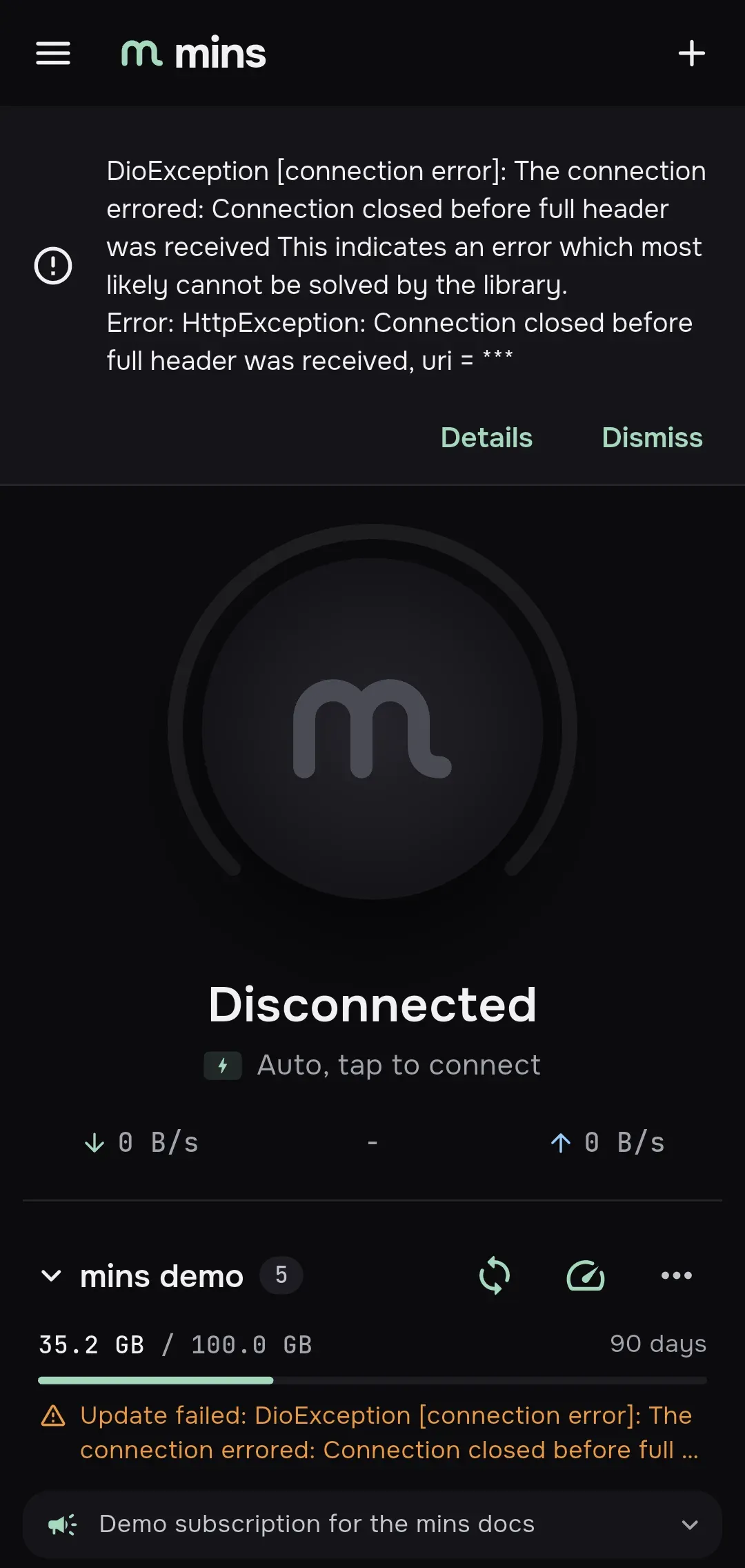
What it means. The last attempt to refresh a subscription failed. mins keeps the servers it already
has, so you can keep connecting, but they are no longer refreshed. The reason is shown after
“Update failed:” under the subscription on Home, and in red on the subscription’s own screen. The
text stays until an update succeeds. Failures of the automatic update also appear in the top banner
as <subscription name>: <reason>.
Reasons and fixes
| Reason (as shown) | Meaning | What to do |
|---|---|---|
Subscription HTTP 403, Subscription HTTP 404, any other status of 300 or more |
The provider’s server answered with an error | Open the URL in a browser on the same network. Check the link with your provider. Try another User-Agent (below) and check Send device identifier (HWID) (below) |
Subscription request timed out |
No answer within the timeout (9 seconds by default; a provider can set 5 to 15) | Try another network. The provider’s address must be reachable without the VPN: on Android mins is excluded from its own tunnel |
Too many subscription redirects, Redirect without location |
More than 5 redirects, or a redirect with no target | Ask the provider for the final URL |
HTTPS required; confirm unencrypted HTTP explicitly |
The URL or a redirect uses plain HTTP | HTTPS required |
Subscription contains no servers; previous servers kept, No servers in subscription (empty_input) |
The answer had no usable server lines | Often the provider returned a stub because it did not recognise the client. Try another User-Agent or contact the provider |
Input is not a share link or subscription (invalid_input) |
The answer is neither a list of links, a base64 list nor JSON | Open the URL in a browser: it is usually a login, captcha or error page |
Import exceeds 16 MiB (input_too_large) |
The answer is larger than 16 MiB | Ask the provider for a smaller subscription |
Only Xray configuration imports are supported (unsupported_format) |
The JSON is in another format | Only Xray configuration imports are supported |
Encrypted Happ/INCY links are not supported (encrypted_link) |
The list contains an encrypted link | Encrypted Happ/INCY links |
Subscription credentials unavailable; restore a backup or enter its URL. |
The saved URL cannot be read | Credentials unavailable |
Device identity unavailable; restore a backup before updating subscriptions. |
The device identifier is lost | Device identity unavailable |
Encrypted subscription profiles unavailable; restore a backup before updating. |
The stored servers cannot be decrypted | Cannot decrypt profile |
| A network error text (DNS, connection refused, certificate) | The request did not reach the provider | Check the internet, the date and time, and that the provider’s address works in a browser |
How to fix
- Open the subscription (the group menu, Edit) and read the red text.
- Open the subscription URL in a browser on the same device and network. If the browser also fails, the problem is the network or the provider, not mins.
- Press Update now, or the refresh button in the group header.
- If the provider rejects the client, change User-Agent on the subscription screen. The choices are
mins,Happ,INCY,Xrayandcustom(Custom User-Agent). Some providers return different answers to different clients. If the provider dictates a User-Agent, the row is locked and you can override the provider’s setting below it. - Check Send device identifier (HWID). mins sends a random per-installation identifier by default
(
x-hwid,x-device-os,x-ver-os,x-device-model). Providers use it for device limits. If the provider says it requires HWID, leave it on; if it rejects the identifier, ask the provider to free a slot. - Check Settings → Subscriptions. Update subscriptions when app opens and the subscription’s Automatic updates and Update interval (hours) decide when the app tries again.
HTTPS required; confirm unencrypted HTTP explicitly
Section titled “HTTPS required; confirm unencrypted HTTP explicitly”What it means. mins downloads subscriptions only over HTTPS. A plain http:// address is allowed
only if you explicitly confirmed it for that subscription. The check runs on the first address and on
every redirect and fallback address, so a link that starts with HTTPS can still fail if it is redirected
to HTTP.
Causes
- The subscription URL starts with
http://and the unencrypted option was not confirmed (for example an old record, or a backup). - The HTTPS address redirects to an
http://address. - The provider’s fallback address (
fallback-url) ishttp://.
How to fix
- Use the
https://version of the address. Edit URL on the subscription screen; that field accepts HTTPS only. - If you need to follow a redirect, open the address in a browser and see where it ends. If the final address is HTTPS, use that one.
- If the provider only offers HTTP (for example a test panel in your own network), import the address
again with
http://. mins shows Unencrypted subscription: “HTTP exposes your subscription and credentials to the network. Continue?” Press Continue only if you accept that anyone on the path can read and change your servers and keys.
Routing profile downloads (Routing profile requires HTTPS) and geo file downloads
(Geo asset requires HTTPS) have no HTTP option at all.
No reachable servers (auto-connect)
Section titled “No reachable servers (auto-connect)”What it means. A subscription is set to connect automatically to the server with the lowest delay. mins pinged every server of the group, and none answered. The message does not appear on an ordinary Connect; it comes from automatic connection at app start, or right after you confirm an import of a subscription that asks for it.
Causes
- No internet at that moment (the app starts before the network is up).
- The ping type does not work on your network. The default ICMP echo is blocked by some networks.
- The ping timeout (5000 ms by default) is too small for a slow link.
- All servers of the group are down or blocked.
How to fix
- Check that the device has internet and open the app again.
- Press Ping all in the group header and see which servers answer.
- Open Settings → Ping. Change Ping type to
TCP connectorThrough proxy (HEAD), and raise Ping timeout (milliseconds) (allowed range 500 to 30000). - Pick a server by hand and connect.
- To stop the automatic choice, open the subscription screen (how to open it) and find
the row
subscription-autoconnect-typein Set by subscription. The row shows the raw key name of the provider’s setting, not a translated label. Tap its pencil (Override), and in Override provider setting enter"lastused"with the quotes. Details: Subscriptions → Override a provider setting.
No supported servers in this group
Section titled “No supported servers in this group”What it means. The group has nothing mins can run, so Auto cannot be built for it. Auto uses only supported servers, and does not include other Auto rows or a provider’s own balancer.
Causes
- Every server in the subscription uses a protocol mins does not support (VMess, Trojan, Shadowsocks and similar). See Protocol X is not supported.
- The servers were rejected when mins checked them against the engine; each shows its reason.
- The subscription is empty after an update.
- The group contains only the provider’s balancer rows.
How to fix
- Open the group and tap a server with a block icon: the reason is written there.
- Update the subscription.
- Ask the provider for VLESS, Hysteria2 or WireGuard servers, or for an Xray JSON configuration.
- If the group has a provider balancer row, select that row instead of Auto.
- Add a server yourself with Add manually.
Choose a server first
Section titled “Choose a server first”What it means. A connection was requested while no server is selected, for example the selected server was deleted or the subscription update dropped it. The Connect button on Home is disabled in that state, so you mostly meet the message from the tray menu on a computer (Connect) or from an automatic start.
How to fix
- On Home, tap a server in the list or Auto. The status line shows its name and “tap to connect”.
- If the list is empty, import a subscription or add a server (Add).
Cannot decrypt profile. Reimport the subscription.
Section titled “Cannot decrypt profile. Reimport the subscription.”What it means. mins stores each server’s configuration encrypted. This message replaces the server’s details when decryption fails: the key is missing or does not match the data, or the stored record is damaged. The same cause makes connecting to that server fail.
Causes
- The encryption key in the system store was lost or reset: the system keystore was cleared, the app’s data was copied to another device or user, or on Linux the Secret Service keyring is a different or new one.
- The database file was restored without the matching key.
At start mins shows a banner “Encrypted data is unavailable. Restore a backup or import subscriptions again. A lost device identifier must be restored from a backup.” when it detects this.
How to fix
- In the banner press Reimport. mins downloads every subscription again and encrypts the servers with the current key. Subscriptions whose URL is also unreadable are listed with “Credentials unavailable; restore a backup or import again”.
- Or press Recovery options, then Restore backup (opens Settings → Data) or Import subscription.
- Servers you added by hand cannot be downloaded again: restore them from a backup or add them again.
- Linux: unlock the same Secret Service keyring before starting mins; see Linux.
If you cannot make a backup because the data is unreadable, that is expected: Export all data refuses to run until the encrypted data is available.
Credentials unavailable; restore a backup or import again
Section titled “Credentials unavailable; restore a backup or import again”What it means. Something that mins stores encrypted cannot be read, so the action was stopped. It has the same root cause as Cannot decrypt profile (a lost or changed key). The wording differs by what could not be read.
| Message | What cannot be read | Fix |
|---|---|---|
<name>: Credentials unavailable; restore a backup or import again |
The subscription’s URL. Shown after Reimport | Delete the subscription (Delete subscription) and import its link again, or Restore backup |
Subscription credentials are unavailable; restore a backup or reimport subscriptions |
At least one subscription URL. Automatic connect at start is blocked | Same as above |
Subscription credentials unavailable; restore a backup or enter its URL. |
The URL of the subscription being updated | Same as above |
Proxy credentials are unavailable; reset proxy authentication or restore a backup |
The login and password of the local proxy. Connecting is blocked until it is resolved | Open Settings → Advanced and switch Require proxy authentication on: new credentials are generated (Proxy username, Proxy password) and the block is lifted. Switch it off again if you do not need it. Applications that used the old password need the new one |
How to fix
- In the banner press Recovery options and choose Restore backup or Import subscription.
- Remove the unreadable entries so they stop appearing in error lists.
- If you have no backup, import the subscription links again from your provider.
Device identity unavailable; restore a backup before updating subscriptions
Section titled “Device identity unavailable; restore a backup before updating subscriptions”What it means. mins sends a random identifier (HWID) with subscription requests. It is created once and stored encrypted. If it cannot be read, mins refuses to update any subscription rather than invent a new one, because providers use this value to count your devices (the subscription screen says “Random per installation, used for device limits”). Turning off Send device identifier (HWID) does not bypass this check.
How to fix
- Press Recovery options in the banner and choose Restore backup. A backup made with Export all data includes the identifier and restores it.
- If you have no backup, open Settings → Data → Reset all data. This deletes everything local, but the next update creates a new identifier. Import your subscriptions again.
- A new identifier looks like a new device to the provider. If the provider limits devices, ask the provider to free the old slot.
Geo database errors
Section titled “Geo database errors”What it means. Routing rules such as geoip:ru or geosite:category-ads-all need two data files,
geoip.dat and geosite.dat. The built-in templates (Global, Russia · direct, China · direct)
download them from GitHub. mins downloads them itself before the tunnel starts, and refreshes them
about weekly or when the profile is newer. If a download fails, the connection fails with the reason.
You can also download a database by hand on the Routing screen.
| Message | Meaning | What to do |
|---|---|---|
Download a geo database first |
The profile editor’s Choose geo code needs at least one downloaded file | Routing → Geo data → Download geo database, enter an HTTPS address |
Insecure geo redirect refused |
The address, or a redirect, uses HTTP | Use an HTTPS address |
Geo asset requires HTTPS |
The address in the profile is not HTTPS | Edit the profile’s Geoipurl / Geositeurl |
Empty geo file |
The server answered with an empty file (often a block page or a broken mirror) | Try another mirror |
Unsafe geo asset filename |
The file name taken from the address contains characters other than letters, digits, _, -, ., starts with a dot, or contains .. |
Use an address that ends in a plain name such as geoip.dat |
Geo SHA-256 verification failed; previous file preserved |
The .sha256sum next to the file does not match |
The mirror is stale or damaged; the previous file stays in use |
Too many geo redirects, Geo redirect without location |
The address redirects too many times | Use the final address |
| A network error (timeout, connection refused, DNS) | GitHub or the mirror is not reachable from your network | See below |
How to fix when GitHub is not reachable
- Open
https://github.comin a browser on the same network. If it fails, the download will fail too, and mins must use a mirror that you can reach. - Open Routing in the side menu, open the profile menu (the three dots) and choose Edit. Set
GeoipurlandGeositeurlto HTTPS addresses of mirrors ofgeoip.datandgeosite.dat. If a.sha256sumfile sits next to a file, mins verifies it. - Use Update Geoipurl and Update Geositeurl at the bottom of the editor to download now.
- Alternatively use a profile that has no
Geoipurl/Geositeurland nogeoip:/geosite:rules. - Connect again.
Protocol X is not supported
Section titled “Protocol X is not supported”What it means. The link or server uses a protocol that mins cannot run. mins supports VLESS,
Hysteria2 (hysteria2://, hy2://) and WireGuard (wireguard://, .conf files and Amnezia
vpn:// links including AmneziaWG). Servers in an Xray JSON may use vless, hysteria and wireguard.
Anything else, such as vmess://, trojan:// or ss://, is kept in the list but marked unsupported
with the reason Protocol vmess is not supported (for JSON: Unsupported protocols: trojan, vmess).
It cannot be connected: pressing Connect on it shows the same reason.
Related messages: Hysteria realm is not supported (a hysteria2+realm link), and
The form supports VLESS, Hysteria2 and WireGuard (the manual server form).
How to fix
- Other servers of the same subscription keep working; select one of them.
- Ask the provider for VLESS, Hysteria2 or WireGuard servers, or for an Xray JSON configuration.
- If you run the server yourself, create a VLESS, Hysteria2 or WireGuard inbound.
Only Xray configuration imports are supported
Section titled “Only Xray configuration imports are supported”What it means. The text you imported is JSON in a format that mins does not read. This is raised when
a JSON object has a top-level proxies key (Clash and Mihomo style) or route key (sing-box style).
mins reads Xray configurations: a full config with outbounds, or a single outbound.
How to fix
- Ask the provider for a plain subscription (a link list, base64) or an Xray JSON export.
- If you have a single server, import its share link (
vless://,hysteria2://,wireguard://) or fill in the form with Add manually. - Do not paste a Clash or sing-box file; mins does not convert them.
Encrypted Happ/INCY links are not supported
Section titled “Encrypted Happ/INCY links are not supported”What it means. The text is a happ://crypt… or incy://crypt… link, an encrypted link. mins does
not decrypt such links and rejects them at import. Plain happ://routing/… and incy://routing/… links
are accepted, they are routing profiles.
How to fix
- Ask the provider for the ordinary subscription address (
https://…) or ordinary share links. - Many panels show both an encrypted link and a plain one; use the plain one.
Certificate verification may be disabled
Section titled “Certificate verification may be disabled”What it means. This is a warning on a server’s details screen, not an error. The server’s
configuration turns off checking of the server’s TLS certificate (allowInsecure). The connection
still works, but the certificate is not checked, so someone on the network path can impersonate the
server and read or change your traffic.
It comes from one of: allowInsecure=1 or insecure=1 in a share link, allowInsecure in the mins
block or in the TLS settings of an Xray JSON, or the Do not verify certificate switch in the manual form.
How to fix
- If you own the server, install a valid certificate for its domain, then remove the flag.
- For a server added by hand: open it, press Edit, and switch Do not verify certificate off.
- For a server inside an Xray JSON: use Edit as JSON copy and set
allowInsecuretofalse. - For a provider’s server: the provider chose this. Ask them to enable certificate verification, or do not use that server for anything sensitive.