
Subscriptions
A subscription is a URL that returns a list of servers. mins downloads it, keeps its servers as a group on the home screen and refreshes it on a schedule. Besides servers, a provider can send the traffic used, the expiry date, an announcement, support links and settings for the client.
Open a subscription
Section titled “Open a subscription”In the header of the group, open the More menu (⋯) and choose Edit. You can also tap the Pending settings changes row under a group header when it appears. The screen is named after the subscription.
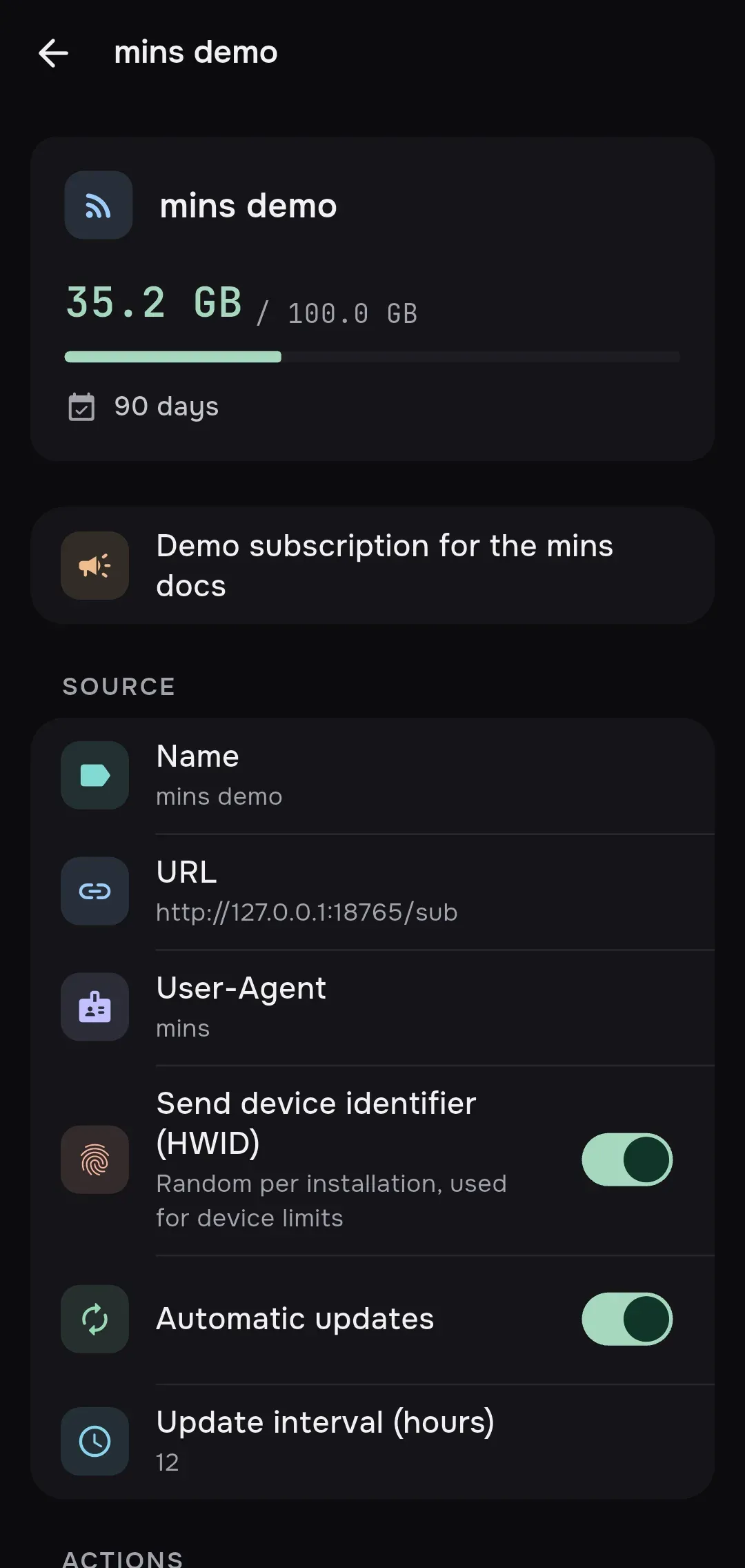
What the screen shows
Section titled “What the screen shows”From top to bottom:
- The summary card: the name, the provider’s description, the traffic as
used / totalwith a bar, and the expiry as a number of days. Unlimited means no traffic limit, No expiry means no end date. When the term has passed or the traffic is used up, the card says Subscription expired, and a Renew button appears if the provider gave a renewal link. - The announcement: a note from the provider, with Learn more when it has a link. On the home screen it takes one line under the group header; tap it to expand. A provider can also show a notice with its own button.
- Subscription URL changed: appears when the provider moved the subscription to a new address. It shows the old and the new URL, and you can dismiss it.
- The last update error, if any, in red.
- Settings that wait for your approval, see below.
- Source and Actions, described below.
- Provider links: Support, Website, Website: plan and Email support, as many as the provider supplied. They open in the browser or the mail app. Only
https://links are opened, and amins://link opens the import preview. - Set by subscription, Rejected provider settings, Not applied and All provider metadata: everything the provider sent, see Provider settings.
The group on the home screen shows the same traffic and expiry in a strip: used / total, the days left and a bar. When 90 percent of the traffic is used or 3 days or fewer are left, it turns orange. When the traffic is used up or the term has passed, it turns red.
When mins starts, it shows a system notification for a subscription that expires within 3 days, within 1 day, and when it has expired. Each stage is shown once. If the provider gave a renewal link, the notification has a Renew action.
Updates
Section titled “Updates”- Automatic updates are on by default. mins checks every 15 minutes and at start whether a subscription is due. The default interval is 6 hours, and a provider can set another one.
- Update subscriptions when app opens in Settings → Subscriptions also updates all subscriptions each time you open the app or return to it, whatever the interval.
- To update now, tap the Update subscription button in the group header (its tooltip also tells when the subscription was last updated and the interval), or choose Update now on the subscription screen.
- An update replaces the list of servers. Servers that mins recognizes by their config, or else by their name, keep their favorite mark, order, last ping and selection.
- If you are connected and the list changed, mins reloads the tunnel. If your selected server disappeared from the list, mins switches to the Auto row of the group.
- If an update fails, the old servers stay. The group shows Update failed: reason, and the screen shows the error in red. A subscription that comes back with no servers is also a failure: Subscription contains no servers; previous servers kept.
- A provider can name a spare address, which mins tries when the main one fails, and can move the subscription to a new URL. Only an HTTPS address is accepted for the move.
The details of the request are in Request headers.
Source
Section titled “Source”The Source section holds how mins talks to the provider:
| Setting | What it does |
|---|---|
| Name | The name of the group. A name you set stays even if the provider sends another title. |
| URL | The subscription address. When you edit it here, only an https:// address is saved: anything else is ignored. An http:// address can only be added through import, after you confirm the Unencrypted subscription dialog. |
| User-Agent | The client name mins sends: mins (default), Happ, INCY, Xray or custom. Some panels answer differently to different clients: if the list comes back empty or in an unexpected format, try another preset. Custom User-Agent appears for custom. |
| Send device identifier (HWID) | On by default. Sends a random identifier of this installation, the OS name and version and the host name of the device, so that the provider can enforce device limits. Off sends none of them. If the provider requires it, turning it off may stop updates. |
| Automatic updates | Updates on a schedule, or only by hand. |
| Update interval (hours) | A whole number of hours, more than zero. |
The names sent as User-Agent:
| Preset | Header value |
|---|---|
| mins | mins/<version> (<os>) |
| Happ | Happ/1.63.1 |
| INCY | INCY/<version>/<os> |
| Xray | Xray-core/26.10.31 |
A provider can fix the User-Agent. The row is then locked with the note User-Agent selection is disabled by this provider. You can override the provider setting below.
Provider settings
Section titled “Provider settings”A subscription can carry settings for the client, in its response headers or in #key: value lines. mins applies most of them as they come: the group’s appearance (sorting, collapsed or expanded, name), the update interval, ping options, which server to connect to at start (the last used, the one with the lowest delay, or a random one), and traffic tuning such as fragmentation, noise, multiplexing and sniffing. Traffic tuning applies only to servers from links, not to complete Xray configs. Every applied setting is listed under Set by subscription. The full list of keys is in Response headers.
Values are layered. A later layer wins over an earlier one:
| Order | Layer |
|---|---|
| 1 | The value built into mins |
| 2 | Your global setting in Settings |
| 3 | The value from the subscription |
| 4 | Your own override for this subscription, see below |
So a setting the provider sends beats your global setting, until you override it for that subscription.
mins refuses some requests outright, for example hiding client settings or repainting the app in provider colors. They are listed under Not applied with the reason.
Provider settings that need your approval
Section titled “Provider settings that need your approval”Settings that change how traffic leaves the device are never applied on their own. They wait for you: switching routing on or off, the connection mode (VPN or proxy), bypass of local networks, taking DNS from a JSON config, the local HTTP proxy, per-app rules, excluded routes, resolving the server address through a given DNS, starting at boot, and on iOS the “include all networks” and Apple push options.
You see them in two places:
- On the first import, in the preview, the block Subscription requests settings changes lists each one with Current and Proposed values. Choose Accept or Reject, or leave it for later.
- After that, the home screen shows the row Pending settings changes under the group. It opens the subscription screen, where Subscription wants to change settings lists each key with
current → proposed, under the note Routing, DNS, startup and local listeners only change after your approval.
Accept applies the values. Reject moves them to Rejected provider settings: mins does not propose them again until the provider changes the value. You can still set a rejected key yourself with Override.
Override a provider setting
Section titled “Override a provider setting”Each row of Set by subscription shows the key and its value as JSON, with a lock icon. Tap the pencil (Override) to open Override provider setting and type your own value as JSON: true, 12, "tcp". Strings need double quotes.
- A row with your value shows Your override under the provider’s value and gets a Reset (undo) button, which returns control to the provider.
- Entering
nullremoves the provider’s value and falls back to your global setting.
Automatic updates and Update interval (hours) in Source work the same way: they are stored as overrides of the provider’s subscription-auto-update-enable and profile-update-interval.
Actions and removal
Section titled “Actions and removal”| Action | What it does |
|---|---|
| Update now | Updates the subscription at once. |
| Share QR | Shows the subscription URL as a QR code. |
| Copy link | Copies the subscription URL and shows Link copied. |
| Delete subscription | Asks Delete subscription and its servers? and removes the group with all its servers. Servers you added by hand are not affected. |
When something goes wrong
Section titled “When something goes wrong”- Update failed: Troubleshooting → Update failed.
- HTTPS required; confirm unencrypted HTTP explicitly: Troubleshooting.
- Cannot decrypt profile. Reimport the subscription.: Troubleshooting.
- Subscription credentials are unavailable; restore a backup or reimport subscriptions, and a banner Encrypted data is unavailable.: the key that encrypts stored subscriptions is gone from the system secret store, and it cannot be recovered. Restore a backup or import the subscriptions again, see Troubleshooting and Backup.
- Device identity unavailable; restore a backup before updating subscriptions: Troubleshooting.