
First connection
This page takes you from an empty app to a working connection. mins has no servers or accounts of its own, so you need a subscription URL from your provider, or a link or config for your own server. Other ways to bring servers in are in Import.
Before you start
Section titled “Before you start”- Install mins, see Install.
- Have your subscription URL at hand. Copy it to the clipboard, for example from your provider’s account page or bot.
- On Linux, VPN (TUN) mode needs your user to be in the
minsgroup, see Install → Linux.
Add a subscription
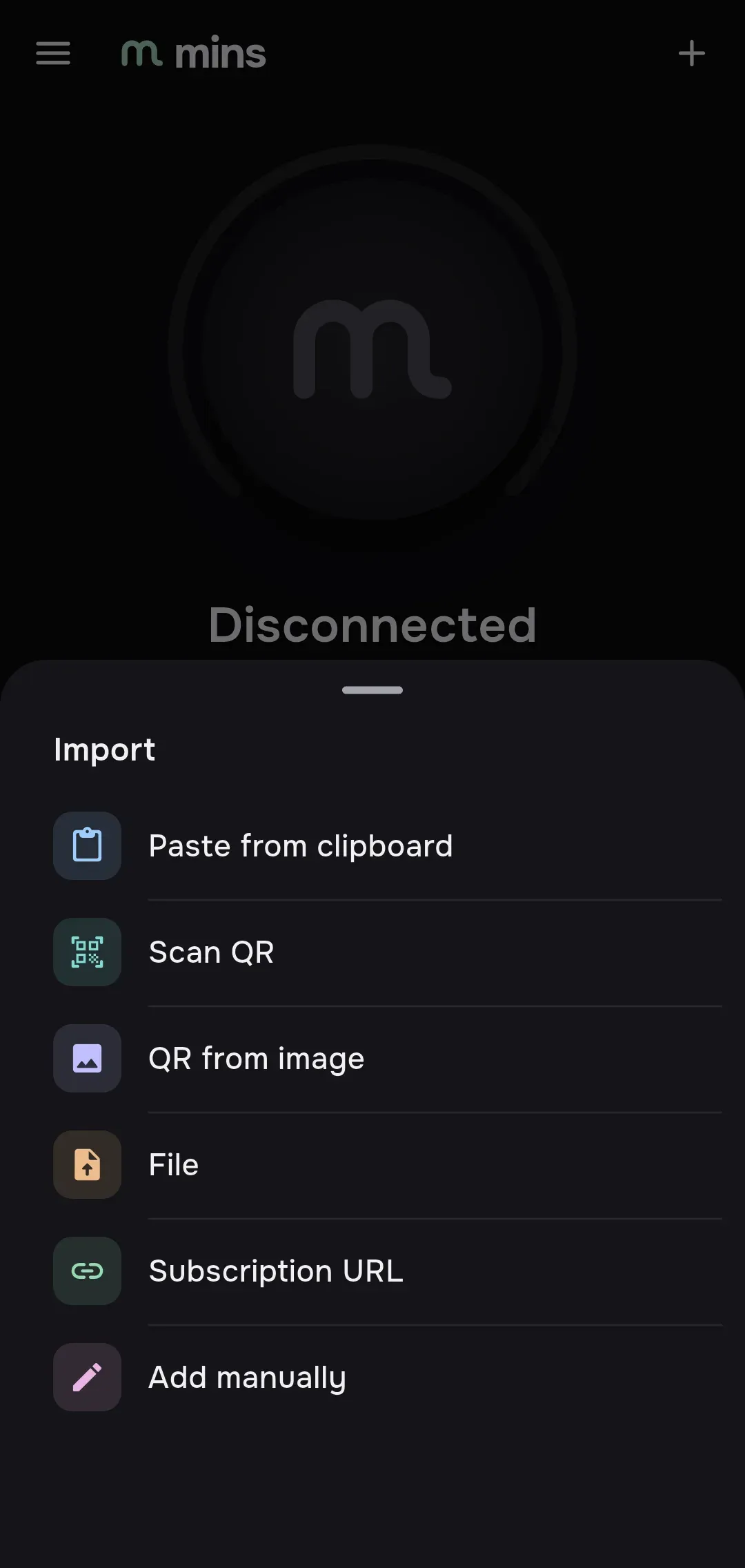
Section titled “Add a subscription”On a fresh install the home screen reads Import a subscription or configuration to begin. and offers an Add button with three quick actions under it: Paste from clipboard, Scan QR and Subscription URL.
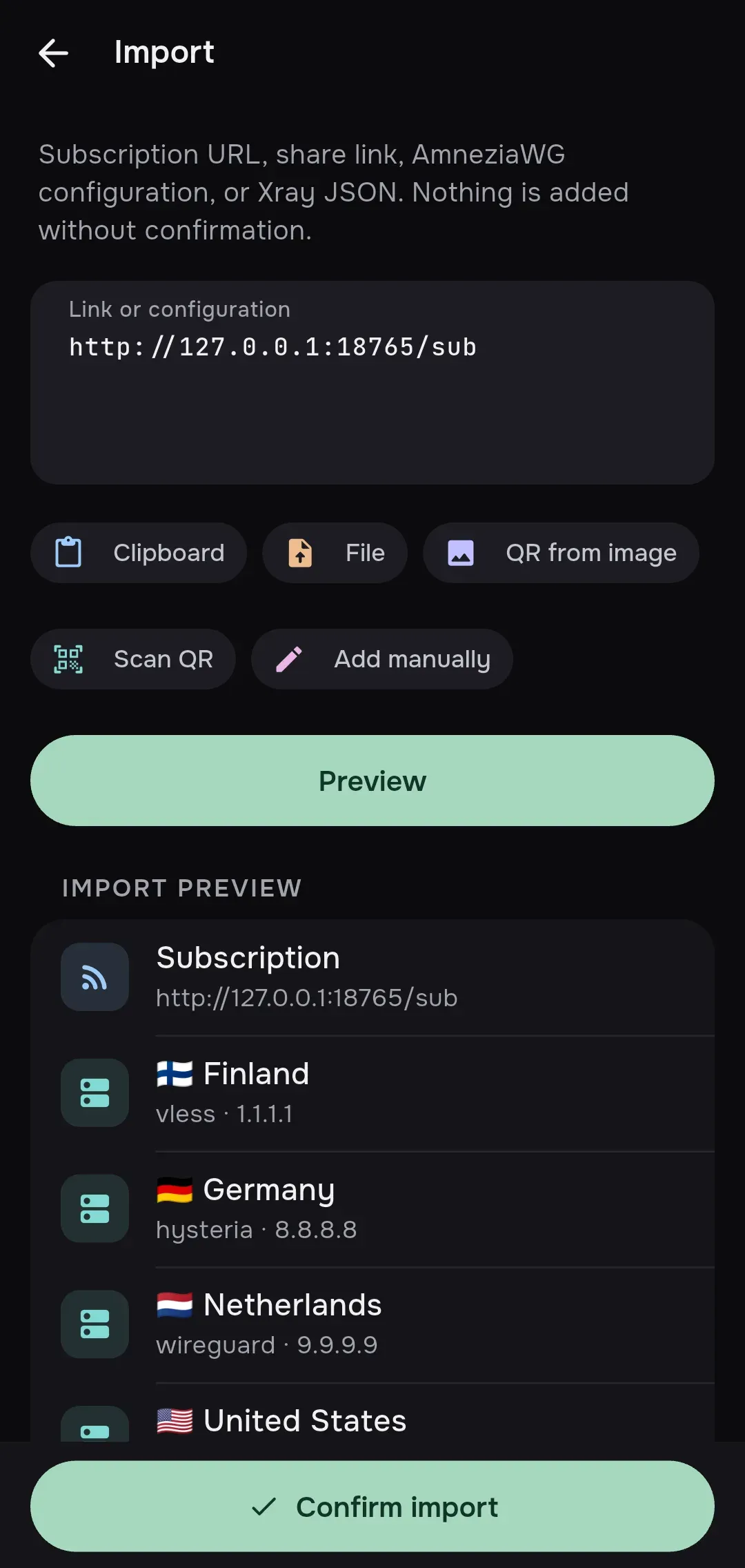
- Tap Paste from clipboard. mins reads the clipboard and opens the Import screen with your text in the Link or configuration field, and builds the preview by itself.
- If the field is empty or the preview did not start, paste the URL into Link or configuration and tap Preview.
You can also tap Add (or the + in the top bar, whose tooltip is Import) to open the import sheet and pick Subscription URL.
Check the preview
Section titled “Check the preview”Under Import preview you see the subscription URL and the list of servers it contains, each as protocol · address. Warnings are marked with a triangle. Servers that mins cannot use are marked with a blocked sign and a reason, and stay in the list, see Import.
If the provider asks to change settings (routing, DNS and similar), a Subscription requests settings changes block appears with the current and proposed values and the Accept and Reject buttons. You may skip it for now: the changes then wait for your decision, see Subscriptions.
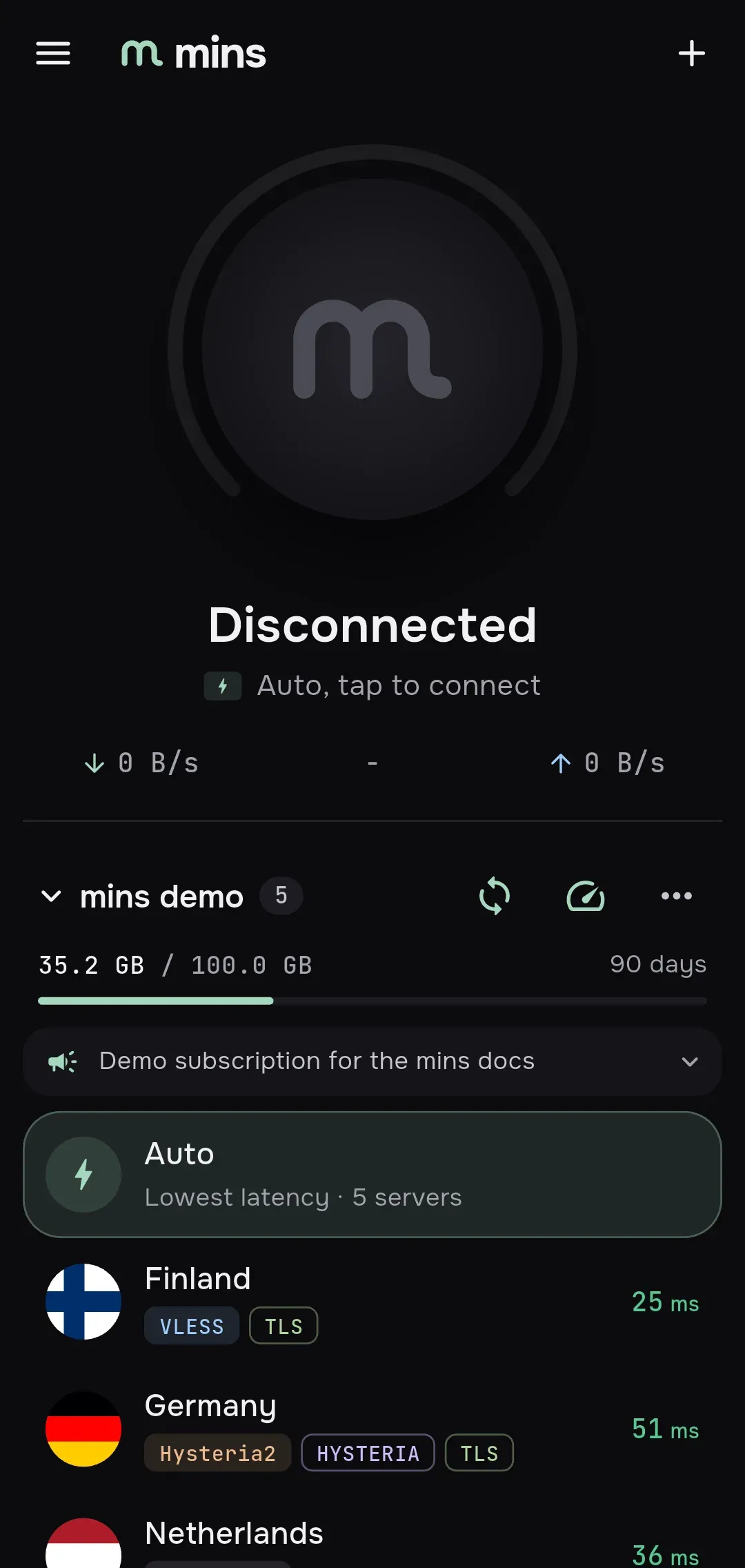
Tap Confirm import. The screen closes and the subscription appears on the home screen as a group with its servers.
Choose a server
Section titled “Choose a server”mins does not pick a server for you. Until you do, the line under the status reads Choose a server and the connect button is disabled.
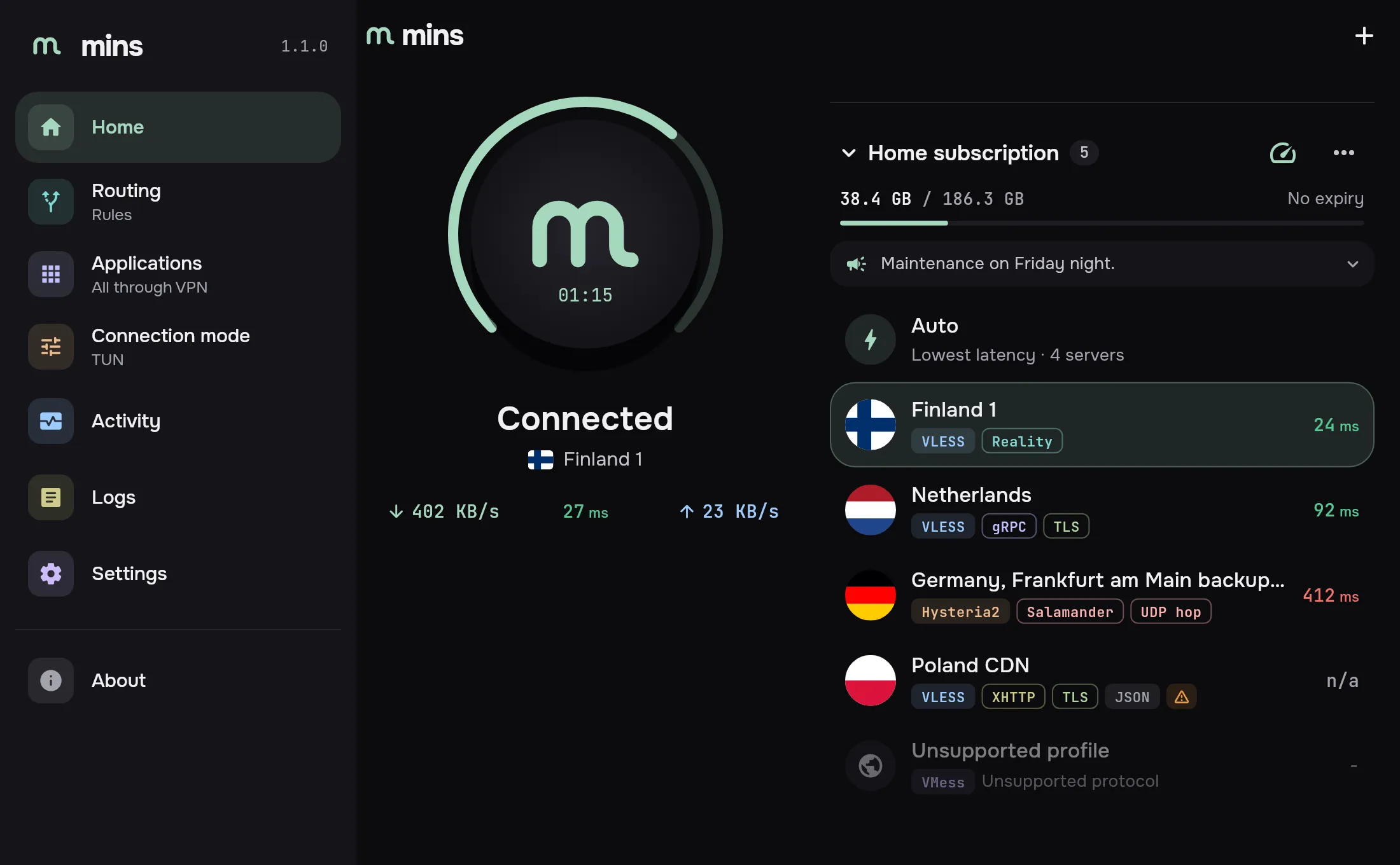
Tap a server row to select it. The row is highlighted and the line under the status becomes <server>, tap to connect. You can also select Auto, the first row of the group: it picks the server with the lowest latency. See Servers.
Pings next to the servers show which ones respond. A server you select while connected is switched to at once, without disconnecting.
Connect
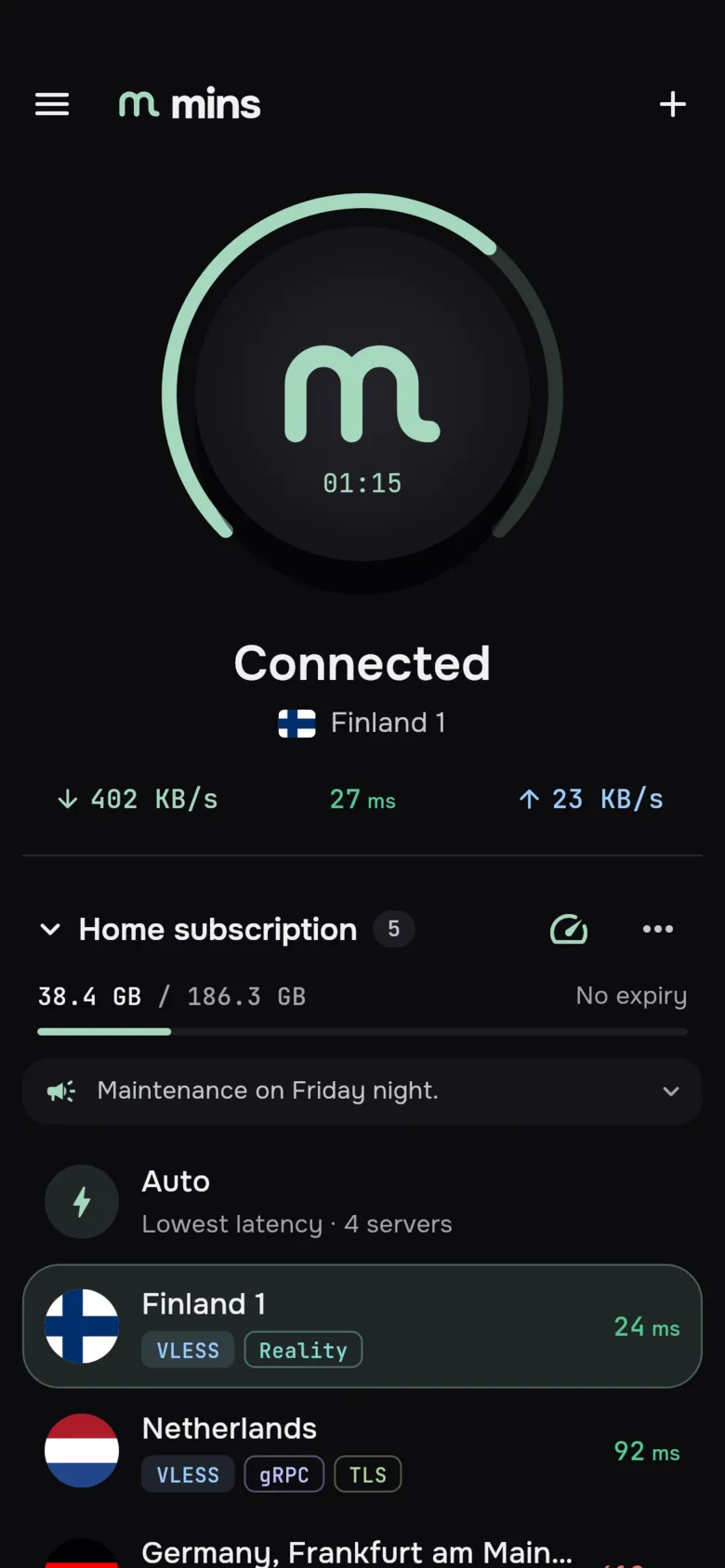
Section titled “Connect”Tap the large round button with the m. The status goes Connecting… and then Connected. The button shows the connection time, and a line under the status shows download speed, ping and upload speed.
On the first connection the system asks for permission:
- Android. A system dialog asks to allow mins to set up a VPN connection. Confirm it. If you refuse, mins shows VPN permission was not granted and you can tap the button again.
- iOS and macOS. The system asks to allow adding a VPN configuration. Confirm it. On macOS the same applies to System proxy mode.
- Windows and Linux. mins does not ask anything at connection time. VPN (TUN) mode relies on the helper service from the installer, and on Linux your user must be in the
minsgroup.
The default mode is VPN (TUN): mins captures the traffic of the whole device and applies your routing rules to it. On desktop you can switch to System proxy or Proxy only in Settings → Connection or from the Connection mode item of the navigation menu, see Connection modes.
If the connection fails, the status becomes Connection failed, and the reason and the hint Choose another server or try again. appear under it.
Start with the reason shown: Connection failed, VPN permission was not granted and the general checklist.
Disconnect
Section titled “Disconnect”Tap the same button. The status goes Disconnecting… and then Disconnected.
On a wide window (840 dp and more) the home screen has two columns: the button on the left and the server groups on the right, and the navigation menu is always visible.
Next steps
Section titled “Next steps”- Import: every way to add servers.
- Servers: groups, Auto, ping, favorites, manual servers.
- Connection modes: VPN, system proxy, kill switch, auto-connect.
- Routing: which traffic goes through the server and which does not.