
Settings reference
This page describes every option on the Settings screen. Names are given as they appear in the English interface. The default is the value in a freshly installed app.
How settings work
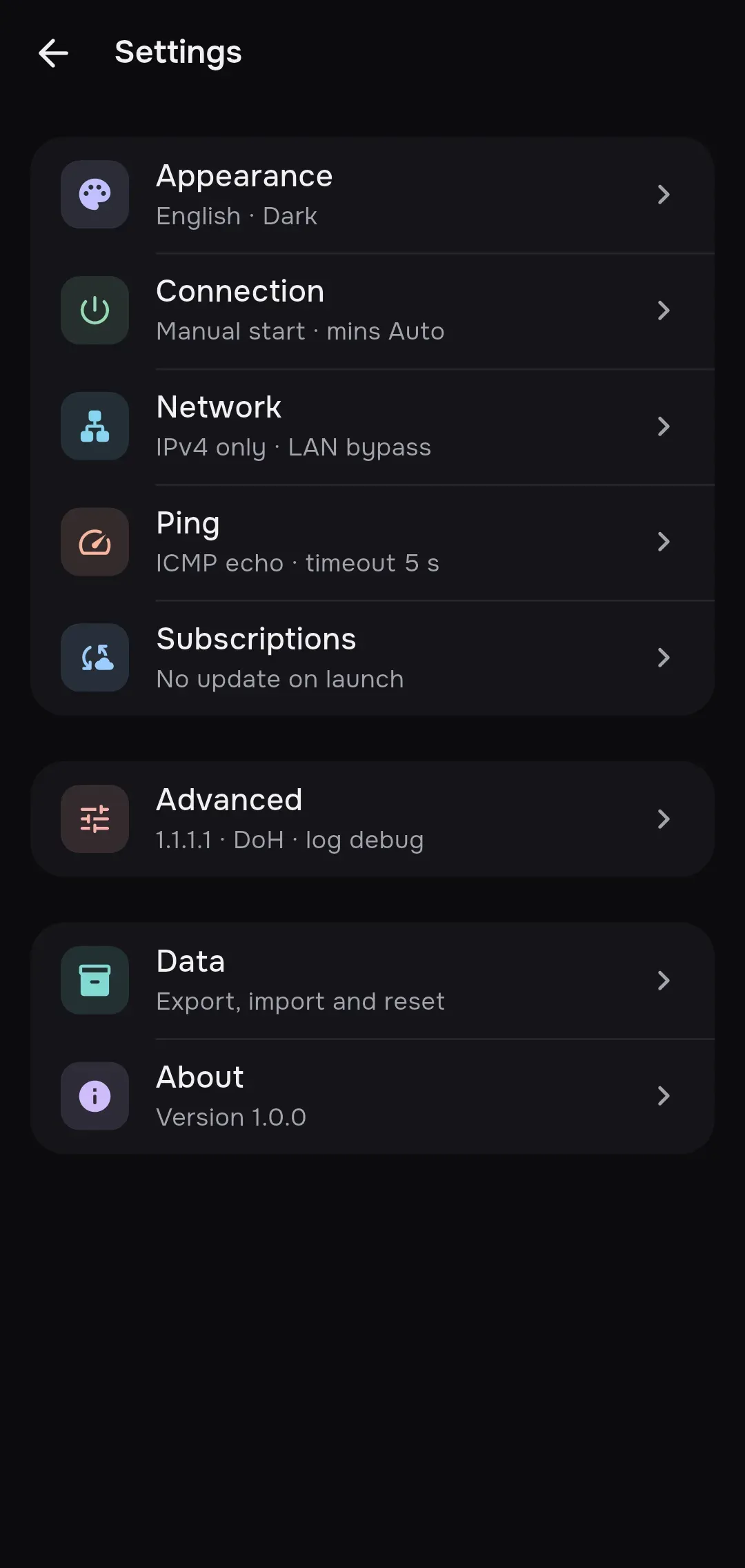
Section titled “How settings work”The Settings screen is a list of groups. Each group has an icon and a short summary of its current values, for example “Manual start · mins Auto”.
| Group | What is inside |
|---|---|
| Appearance | Language and theme |
| Connection | Startup and auto-connect, Auto priority, mode, kill switch |
| Network | IPv6, local networks, Apple modes, split tunneling |
| Ping | How, where to and how latency is measured and shown |
| Subscriptions | Subscription updates, User-Agent and geo databases |
| Advanced | DNS, TLS fragmentation, noises, mux, local proxy, routes, log level |
| Data | Export, import and reset |
| Help | Opens the documentation in the browser |
| About | Versions and licenses |
A Subscription wants to change settings row with the subscription’s name can appear above the list. Tap it to review the proposed changes and accept or reject them.
Good to know:
- An option is stored only if you changed it. Until then the default applies.
- A subscription can control some options. Then a Set by “name” row appears under the option, with the value in effect for its servers. Tapping it opens the subscription screen, where you can override the value. See the last section.
- If you change an option while connected, it applies right away. Options that change the network interface or a local port restart the connection: Connection mode, Kill switch, IPv6, Bypass local networks, Include all networks, Exclude Apple push notifications, Split tunneling, Excluded routes, Mixed proxy port, Require proxy authentication, Open loopback HTTP/SOCKS proxy in TUN mode, Sniff traffic destinations and FakeDNS. Other changes are reloaded without a restart, and language, theme, ping, startup and auto-connect do not affect the connection.
Appearance
Section titled “Appearance”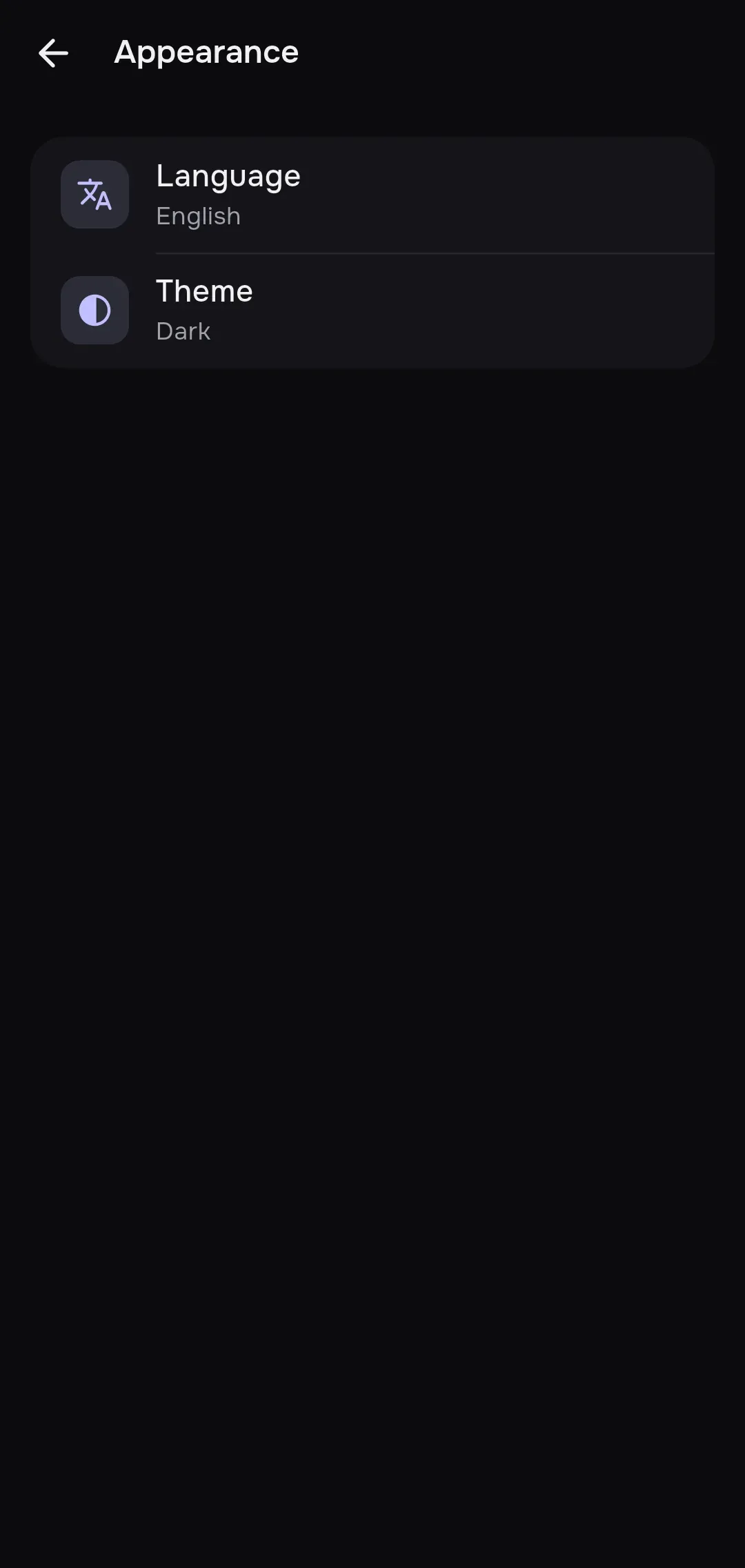
| Option | Default | Platforms | Effect |
|---|---|---|---|
| Language | Russian if the system language is Russian, otherwise English | All | Interface language: English or Русский |
| Theme | System | All | System, Light or Dark |
Connection
Section titled “Connection”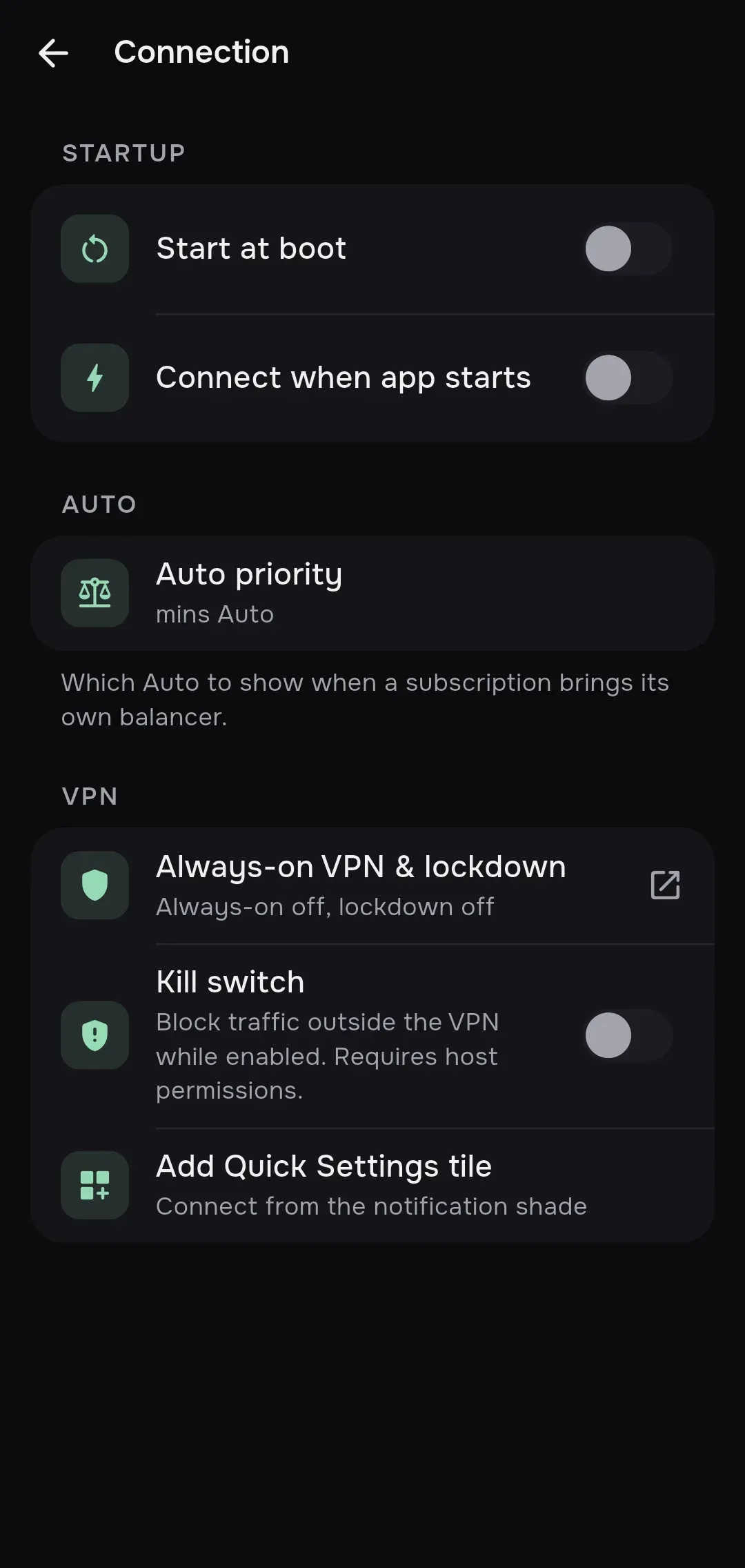
The modes are described in detail on Connection modes.
Startup
Section titled “Startup”| Option | Default | Platforms | Effect |
|---|---|---|---|
| Start at boot | Off | Android | Brings the VPN up after the device reboots. The switch shows the real state. If a subscription sets it, the switch is read-only |
| Launch at login | Off | Windows, Linux, macOS | Starts mins when you log in |
| Connect at login | Off | Windows, Linux, macOS | Connects the selected server when mins starts |
| Connect when app starts | Off | All | Connects the selected server when mins starts |
| Live Activity | On | iOS | Connection state and time on the lock screen and in the Dynamic Island |
| Auto-connect | Off | iOS, macOS | Off, Always or Except trusted Wi-Fi. The system does the connecting |
| Trusted Wi-Fi networks | None | iOS, macOS | Wi-Fi network names, one per line, up to 32 bytes each. Used in Except trusted Wi-Fi mode |
On macOS the Launch at login switch reflects the state of the system login item. If approval is needed, an Allow mins in System Settings → Login Items row is added, and if the login item is unavailable the message “Login item is unavailable” appears.
| Option | Default | Platforms | Effect |
|---|---|---|---|
| Auto priority | mins Auto | All | Which Auto to show when a subscription brings its own balancer. mins Auto picks the server with the lowest ping, Provider balancer balances by the rules from the subscription. It changes only the list on the home screen; the connection is not restarted |
| Option | Default | Platforms | Effect |
|---|---|---|---|
| Connection mode | VPN (TUN) | Windows, Linux, macOS | VPN (TUN), System proxy or Proxy only. Android and iOS have no choice: it is always a VPN |
| Always-on VPN & lockdown | n/a (button) | Android | Opens the system VPN settings. The row shows the status: “Always-on on or off, lockdown on or off” |
| Kill switch | Off | All; on desktop only in VPN (TUN) mode | Blocks traffic outside the VPN. See Connection modes |
| Add Quick Settings tile | n/a (button) | Android | Adds the mins tile to the quick settings (“Connect from the notification shade”) |
Network
Section titled “Network”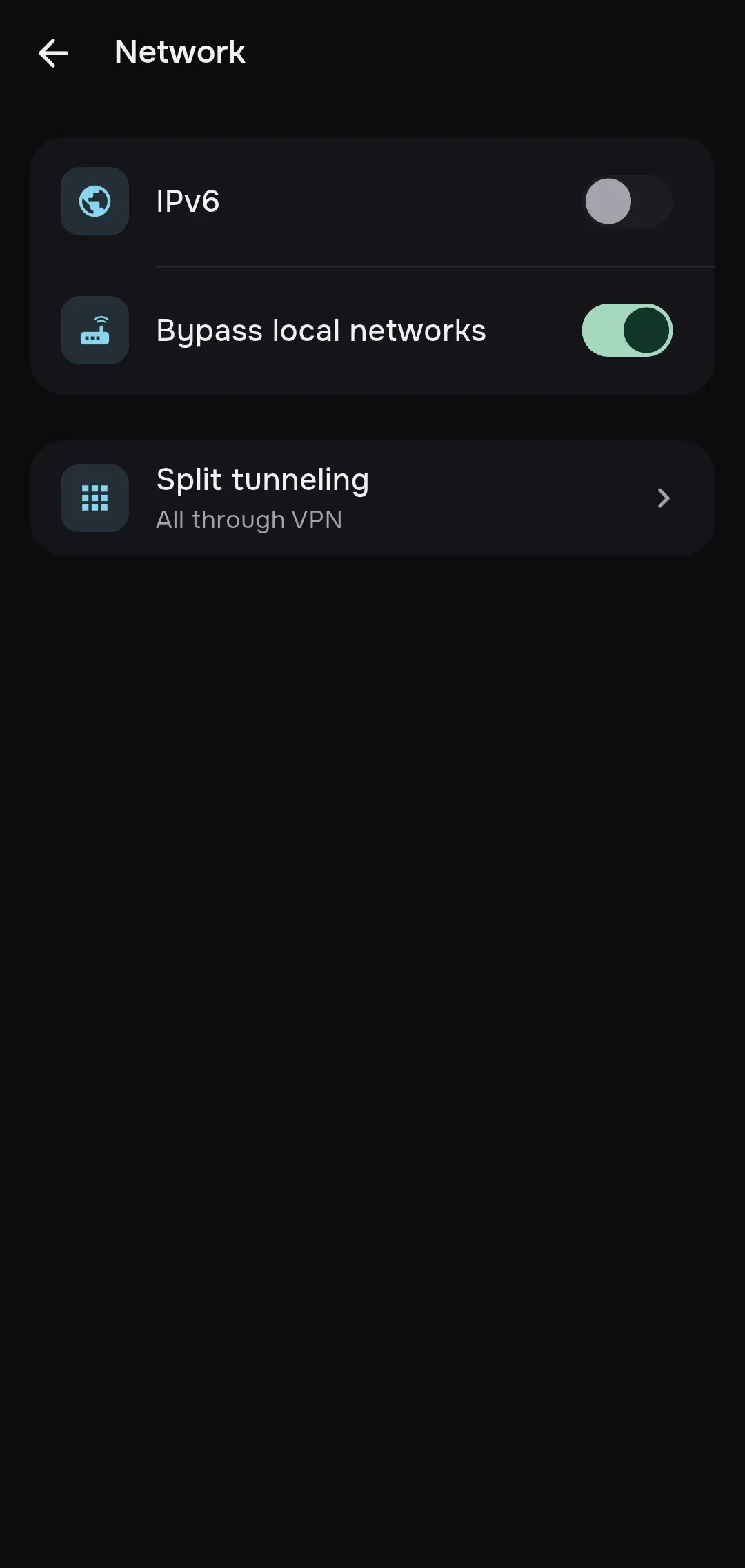
| Option | Default | Platforms | Effect |
|---|---|---|---|
| IPv6 | Off | All | Off: the tunnel carries IPv4 only (the summary says “IPv4 only”). On: an IPv6 address is added to the tunnel and names are resolved to IPv6 too |
| Bypass local networks | On | All | Traffic to local (private) network addresses goes direct, outside the VPN. On iOS and macOS it also turns on the tunnel’s local network exclusion |
| Include all networks | Off | iOS, macOS | Forces all device traffic through the tunnel (Apple’s includeAllNetworks option) |
| Exclude Apple push notifications | On | iOS, macOS | Apple push notifications bypass the tunnel. You can turn it off on iOS 16.4 and newer and macOS 13.3 and newer |
| Split tunneling | Off | Android, Windows, Linux | Which apps go through the VPN or bypass it. See Split tunneling |
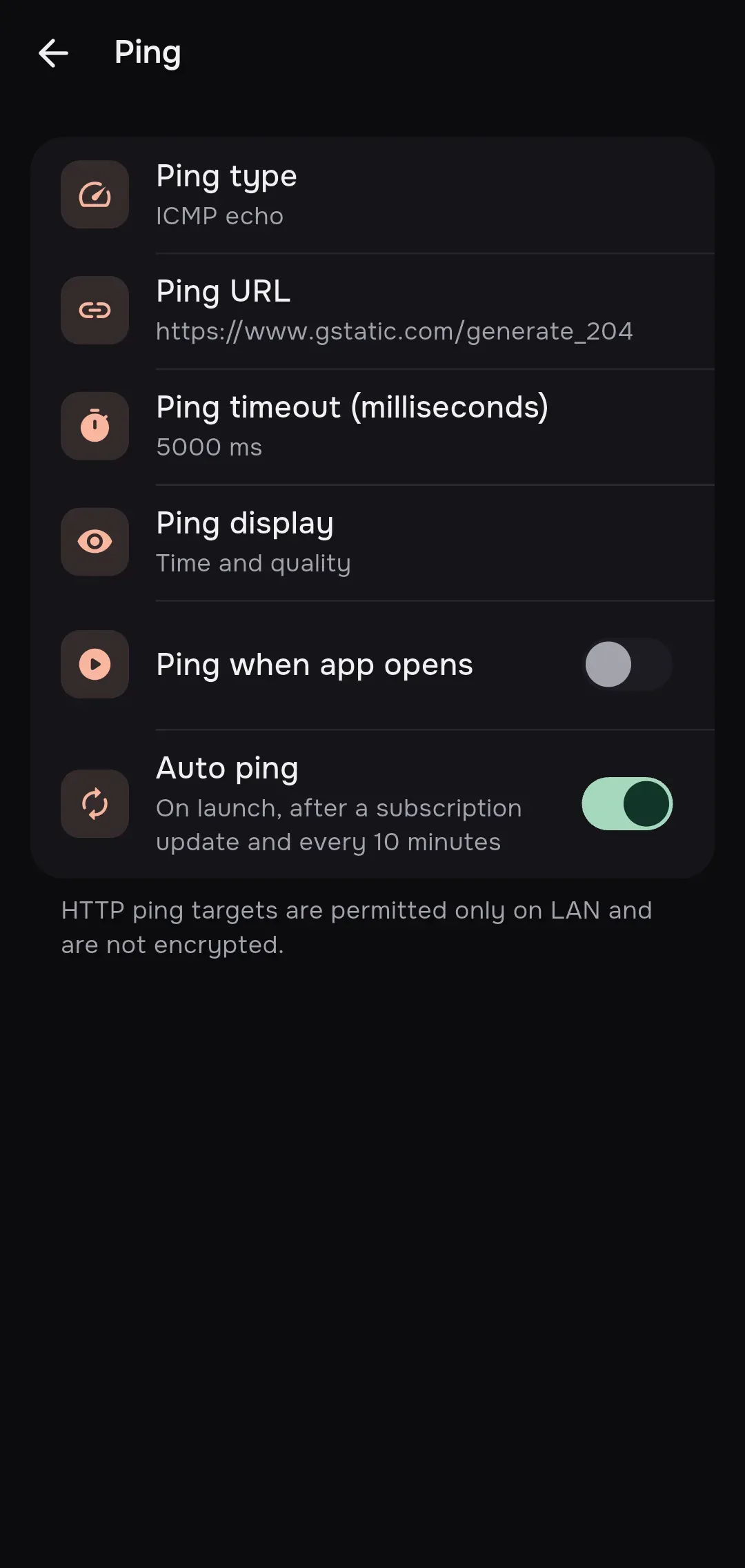
Ping measures the latency to servers. More about servers and ping: Servers. If a provider set ping for a subscription, a Set by … row with the value for its servers appears under the last row.
| Option | Default | Platforms | Effect |
|---|---|---|---|
| Ping type | ICMP echo | All | How latency is measured. ICMP echo: echo to the server IP without the proxy, TCP if unavailable. TCP connect: TCP handshake with the server, UDP protocols go through the proxy. Through proxy (HEAD): a request through the server, less traffic. Through proxy (GET): a full request through the server |
| Ping URL | https://www.gstatic.com/generate_204 |
All | The address for the “Through proxy” types and for measuring the latency of the active connection. https:// is accepted. http:// is allowed only on a local network (“HTTP ping targets are permitted only on LAN and are not encrypted.”) |
| Ping timeout (milliseconds) | 5000 ms |
All | An integer from 500 to 30000 |
| Ping display | Time and quality | All | Time and quality or Quality icon only |
| Ping when app opens | Off | All | Measures the latency of all servers when mins starts |
| Auto ping | On | All | “On launch, after a subscription update and every 10 minutes” |
Subscriptions
Section titled “Subscriptions”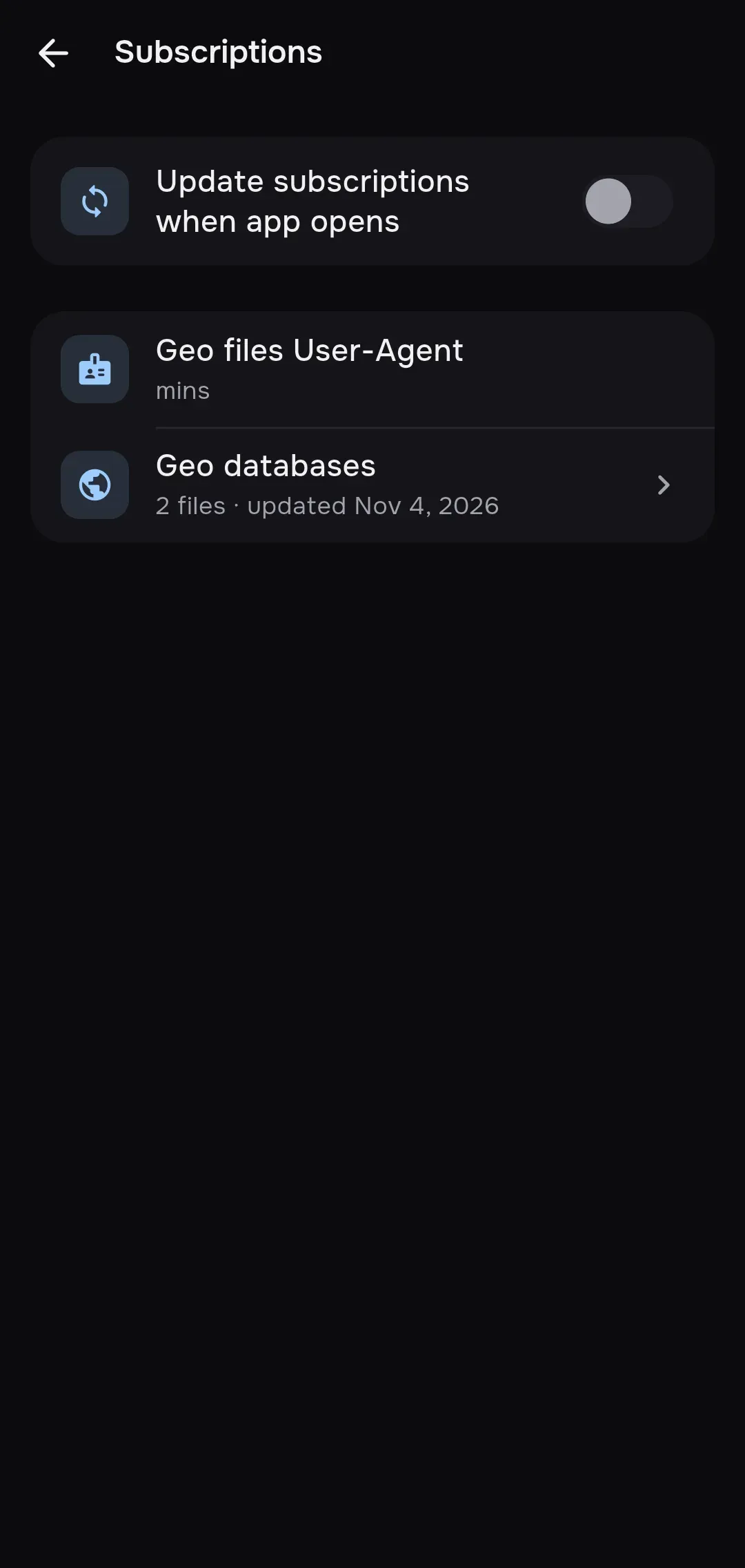
| Option | Default | Platforms | Effect |
|---|---|---|---|
| Update subscriptions when app opens | Off | All | Updates subscriptions every time the app starts, not only on schedule. Applies to the whole device. If a subscription sets the value, the switch is read-only |
| Geo files User-Agent | mins |
All | The User-Agent mins sends when it downloads geo files: mins (that is mins/<version> (<system>)), Safari, macOS; Chrome, Windows; Safari, iOS; Firefox, Windows; Chrome, Android. Applies to the whole device. If a subscription sets the value, the row is read-only |
| Geo databases | n/a | All | Opens the Routing screen with the geo data files. The row shows the number of files and the update date, and “Not downloaded yet” before the first download |
Advanced
Section titled “Advanced”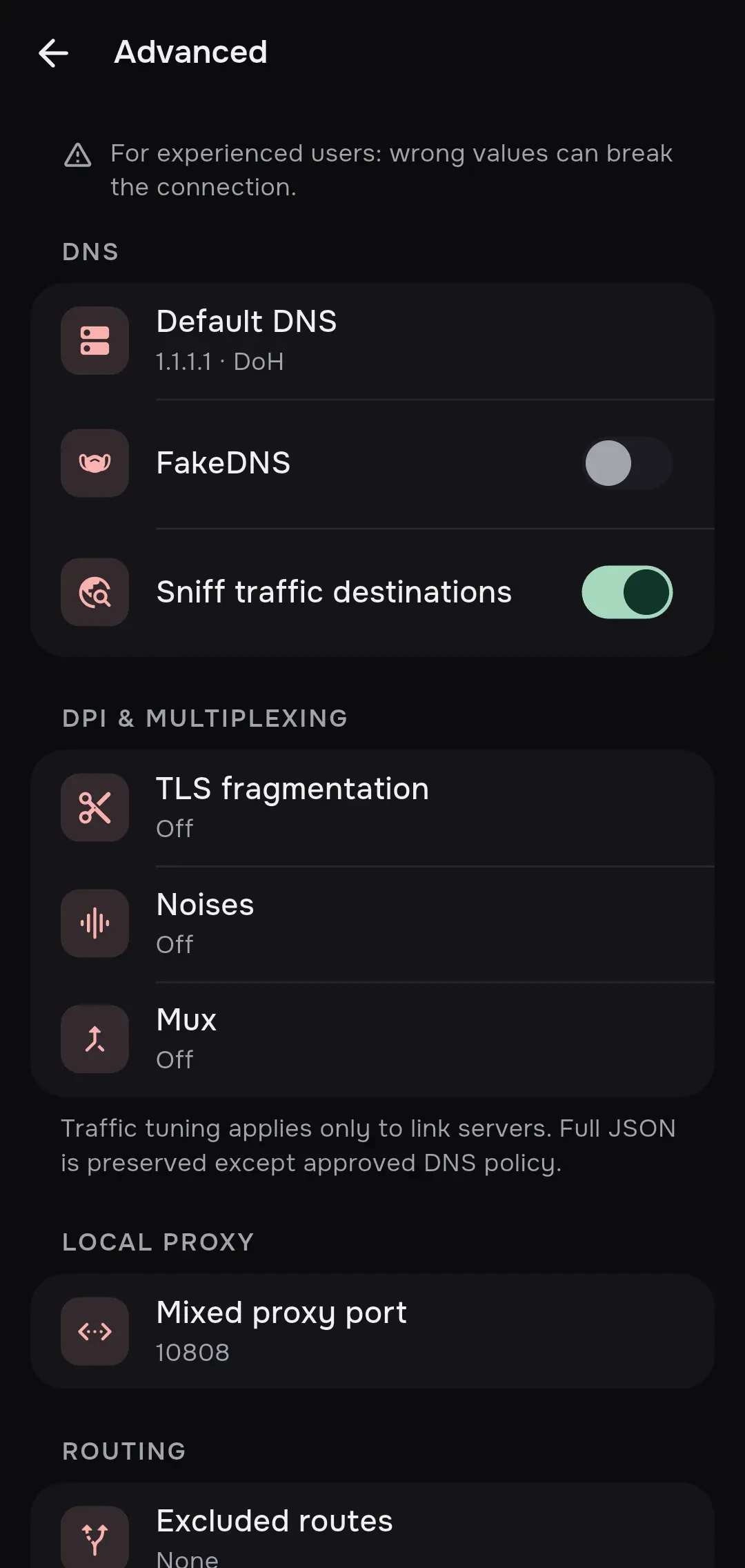
At the top of the screen is a warning: “For experienced users: wrong values can break the connection.” Options stored as JSON appear as a one-line summary and are edited in a dialog: the JSON is checked before the dialog closes.
| Option | Default | Platforms | Effect |
|---|---|---|---|
| Default DNS | DoH 1.1.1.1 ({"servers": ["https://1.1.1.1/dns-query"]}) |
All | An Xray DNS object. The summary shows the first server and its type: 1.1.1.1 · DoH, with +N for more servers. The value null switches to “From the routing profile”: then DNS comes from the profile. While the value is not null, the DNS fields of the routing profile are not used |
| FakeDNS | Off | All | Answers DNS queries with addresses from reserved ranges (198.18.0.0/15, plus fc00::/18 with IPv6) and maps them back to domains so domain rules work |
| Sniff traffic destinations | On | All | Reads the site name from HTTP, TLS and QUIC traffic so domain rules also work for connections made by IP address |
DPI & multiplexing
Section titled “DPI & multiplexing”The section footer reads: “Traffic tuning applies only to link servers. Full JSON is preserved except approved DNS policy.” These three options do not apply to servers added as a full Xray JSON.
| Option | Default | Platforms | Effect |
|---|---|---|---|
| TLS fragmentation | Off | All | An Xray object. Default {"enabled": false, "packets": "tlshello", "length": "100-200", "interval": "10-20"}. The maxSplit field is also accepted. The value null turns it off. An object without an enabled field counts as on |
| Noises | Off (empty list) | All | An array of Xray noise packets. The summary shows the packet count and types |
| Mux | Off | All | Multiplexing. Default {"enabled": false, "concurrency": 8}. The fields xudpConcurrency and xudpProxyUDP443 (reject, allow or skip) are also accepted. The summary shows the stream count |
Local proxy
Section titled “Local proxy”| Option | Default | Platforms | Effect |
|---|---|---|---|
| Mixed proxy port | 10808 |
All | The port of the local SOCKS5 and HTTP proxy on 127.0.0.1. An integer from 1024 to 65535. Used in System proxy and Proxy only modes and when the loopback proxy in TUN is on |
| Open loopback HTTP/SOCKS proxy in TUN mode | Off | Windows, Linux, macOS | Additionally opens the local proxy in TUN mode. Only 127.0.0.1, with generated credentials |
| Require proxy authentication | Off | Shown when Proxy only mode is selected | Turns on user name and password login (SOCKS5 and HTTP). Creates Proxy username and Proxy password with copy buttons. Turning it off deletes the credentials |
Routing
Section titled “Routing”| Option | Default | Platforms | Effect |
|---|---|---|---|
| Excluded routes | None (empty list) | All | Addresses and networks in CIDR form, one per line or comma separated, for example 203.0.113.0/24. Traffic to them goes direct. An invalid value is rejected: “Use CIDR addresses” |
Diagnostics
Section titled “Diagnostics”| Option | Default | Platforms | Effect |
|---|---|---|---|
| Log level | info |
All | How much the log records, from the most detailed to the least: trace, debug, info, warn, error. A level keeps its own entries and the more severe ones |
While connected, the level applies at once, without a reconnect. When a connection is being set up, trace is the same as debug: the full trace detail appears only while the connection runs. For diagnostics start with debug, then see Logs.
| Option | Effect |
|---|---|
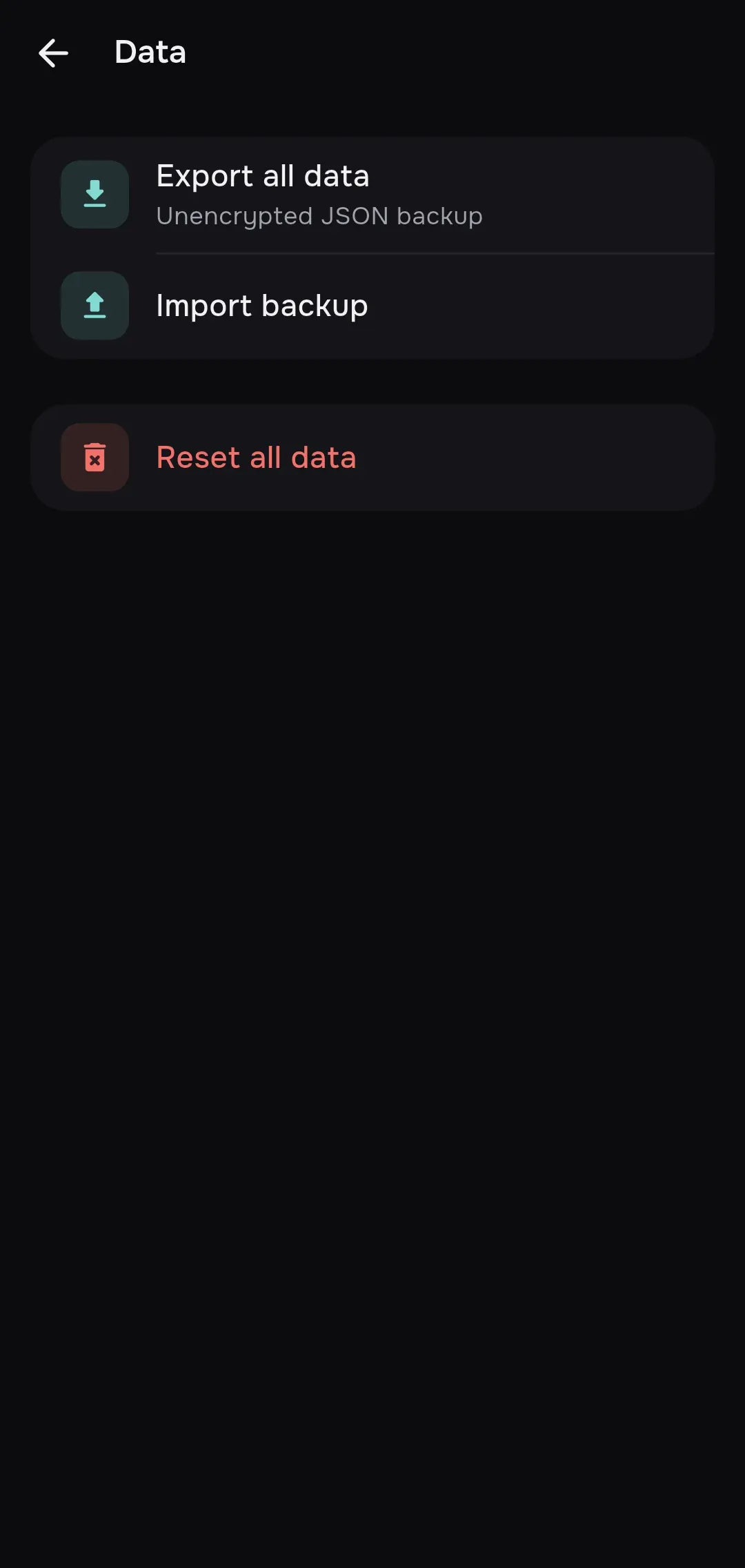
| Export all data | Saves all data to a mins-backup.json file. The file is not encrypted (“Unencrypted JSON backup”) |
| Import backup | Loads data from a file. Records with matching identifiers are replaced |
| Reset all data | Deletes servers, subscriptions, profiles and settings. Irreversible |
More in Backup and reset.
The Help row (between Data and About, with the summary “Guides and troubleshooting”) opens the documentation home, https://minsclient.com/docs/<ru or en>/, in the browser. The language follows the app language.
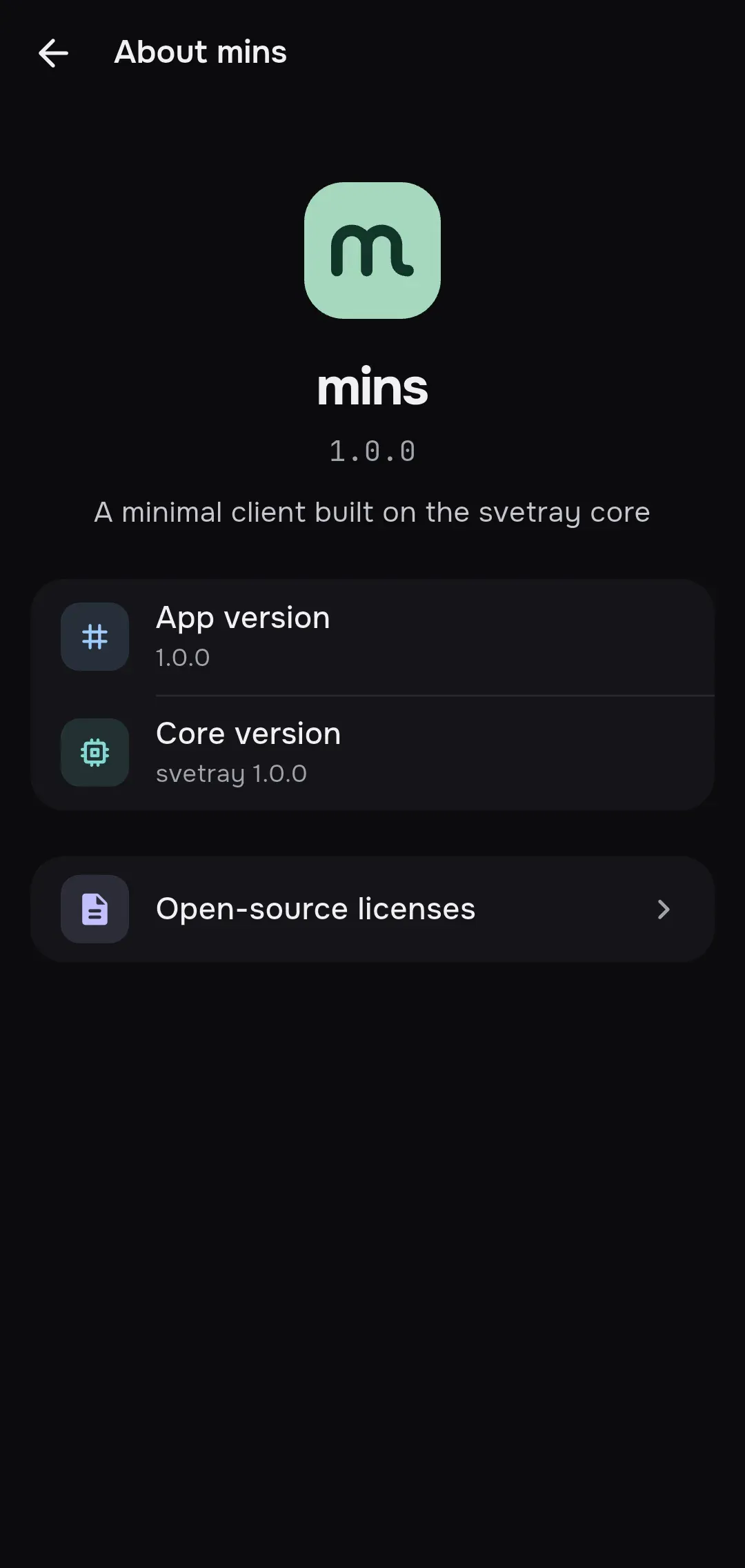
The About row opens the About mins screen: the logo, the version, a short description (“A minimal client built on the svetray core”), the App version and Core version rows, and Open-source licenses. It is also in the side menu.
Settings a subscription can control
Section titled “Settings a subscription can control”A subscription provider can set some options. The priority is: built-in values, your settings, the subscription’s settings, your override for that subscription. Options that change the network and startup are not applied without your approval: they land in the Subscription wants to change settings list.
| Option | Approval needed |
|---|---|
| Start at boot | Yes, applies to the whole device |
| Connection mode | Yes |
| Bypass local networks | Yes |
| Include all networks, Exclude Apple push notifications | Yes |
| Split tunneling | Yes |
| Excluded routes | Yes |
| Open loopback HTTP/SOCKS proxy in TUN mode | Yes |
| Default DNS (replacing the DNS of a full JSON and protected resolution of server addresses) | Yes |
| Ping type, Ping URL, timeout and ping display | No |
| TLS fragmentation, Noises, Mux, Sniff traffic destinations | No, and only for link servers |
| Update subscriptions when app opens, Geo files User-Agent | No, apply to the whole device |
A provider cannot hide client settings and cannot force display colors. The full list of fields is in Response headers.