
Routing
Routing decides which traffic goes through the server, which goes direct and which is blocked. Open the screen from the side menu: Routing.
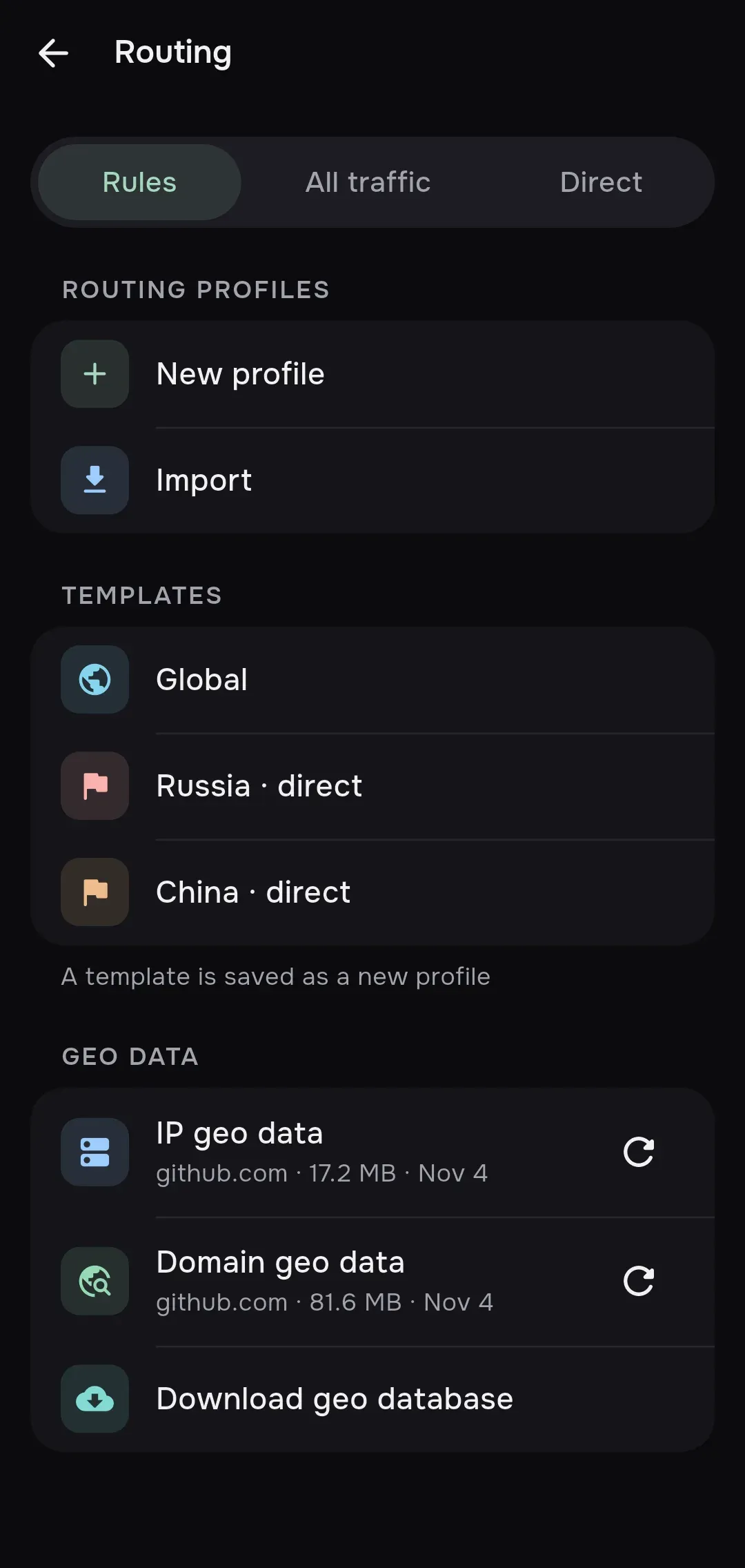
The switch at the top has three modes. Rules is selected by default.
| Mode | Where traffic goes |
|---|---|
| Rules | The rules of the active profile apply. Anything that matches no rule goes through the proxy. With no active profile, all traffic goes through the proxy |
| All traffic | Everything goes through the selected server. Profile rules are not applied |
| Direct | Everything goes direct and the proxy is not used. The connection stays up |
Three rules apply in every mode and are checked before the profile rules:
- DNS queries (port 53) are handled by the built-in DNS module of mins.
- Local network addresses go direct when Bypass local networks is on (Settings → Network).
- Addresses from Excluded routes (Settings → Advanced → Routing) go direct.
Apps you took out of the tunnel, or kept alone in it, are handled as described in Split tunneling.
In Rules mode the profile rules are checked in this order: block (Block) first, then direct (Direct), then proxy (Proxy). The first matching rule wins. If a profile has the GlobalProxy flag on, its rules are not applied and all traffic goes through the proxy.
Profiles
Section titled “Profiles”The Routing profiles section lists every saved profile. Each shows its source: Template, Imported, Manual or From subscription.
- Tap a profile to make it active. Only one profile can be active: it has a check mark and an Active badge. The profile is used in Rules mode.
- The profile menu (three dots): Edit, Export QR, Delete. Export QR builds a QR code of a
mins://routing/add/…link that carries the profile itself, to move it to another device. - New profile opens the editor with an empty profile.
- Import opens the import screen: paste a profile from the clipboard, a file or a link (see Import).
A subscription can ship its own profile and enable it for its servers. Then the subscription’s profile is used for those servers instead of the active one. A subscription can also turn routing off for its servers. More in For providers.
mins refreshes profiles that were loaded from a link when the app starts.
Templates
Section titled “Templates”The Templates section adds a ready-made profile. A template is saved as a new profile and does not turn itself on: pick it in the profile list. If a profile with the same name exists, the template replaces it.
| Template | Direct | Block | The rest |
|---|---|---|---|
| Global | Not used: GlobalProxy is on, all traffic goes through the proxy |
Not used | Proxy |
| Russia · direct | geosite:category-ru, geoip:ru, geoip:private |
geosite:category-ads-all |
Proxy |
| China · direct | geosite:cn, geoip:cn, geoip:private |
geosite:category-ads-all |
Proxy |
The profiles are saved under the names Global, Russia and China, and are listed under those names.
In every template the remote DNS is DoH https://1.1.1.1/dns-query, the domestic DNS is DoH https://dns.google/dns-query and the domain strategy is IPIfNonMatch. Geo files for Russia come from runetfreedom/russia-v2ray-rules-dat, for the others from Loyalsoldier/v2ray-rules-dat.
Profile editor
Section titled “Profile editor”The Edit routing screen opens from the profile menu (Edit) or with New profile. A new profile is named Routing and uses the same DNS and domain strategy as the templates.
- Name: the profile name.
- The Direct, Proxy and Block sections each have two lists: Domains / geosite and IP / geoip. Enter values one per line or separated by commas, for example
geosite:category-ruorgeoip:ru. - The globe button (Choose geo code) opens a search over the codes of a downloaded geo database and adds the chosen code to the list. Until a geo database is downloaded it shows “Download a geo database first”.
- The DNS section holds the fields
RemoteDNSType,RemoteDNSDomain,RemoteDNSIP,DomesticDNSType,DomesticDNSDomain,DomesticDNSIP,DomainStrategy,Geositeurl,Geoipurland a FakeDNS switch. Whether FakeDNS is on for a connection is set by the global FakeDNS setting in Settings → Advanced. - If
GeositeurlorGeoipurlis filled in, a button to update that file appears below. - Save validates and stores the profile. If a connection is active, it reloads the configuration.
The profile format and all fields are described for providers in Routing profiles.
Geo data
Section titled “Geo data”Rules like geosite:… and geoip:… use two files: IP geo data (geoip.dat) and Domain geo data (geosite.dat). The Geo data section shows each file with its source, size and date. Tap one for the details: the source address, the file path and the SHA256 checksum, each with a copy button. The refresh button downloads the file again. The same list opens from Settings → Subscriptions → Geo databases.
How mins handles the files:
- mins downloads the files it needs when you connect, from the
GeoipurlandGeositeurlof the active profile. If geo data is needed and the profile gives no address,runetfreedom/russia-v2ray-rules-datis used. - A file is downloaded again if it is missing, older than 7 days, or the profile was updated after the file. While connected this is checked every 15 minutes.
- The address must be HTTPS, with up to five redirects. If a
<address>.sha256sumfile sits next to it, the checksum is verified. The new file is validated before it replaces the old one, so on an error the old file stays. - Requests use the User-Agent from the Geo files User-Agent option (Settings → Subscriptions). By default it is
mins/<version> (<system>). - Download geo database asks for an HTTPS address and saves the file under the name from the address. Use it to plug in your own rule set.
Geo download errors: Errors.