
Import
How import works
Section titled “How import works”Every import in mins, whatever the source, follows the same two steps: Preview, then Confirm import. Nothing is added until you confirm, including links that open mins from outside (see mins:// links).
The preview shows what mins found: the servers with their protocol and address, warnings, an attached routing profile and any provider settings that need your approval. If mins cannot read the input at all, it shows the error instead and keeps your existing servers untouched.
Ways to import
Section titled “Ways to import”On the home screen, tap the + in the top bar (its tooltip is Import) or, while the list is empty, the Add button. The Import sheet opens:
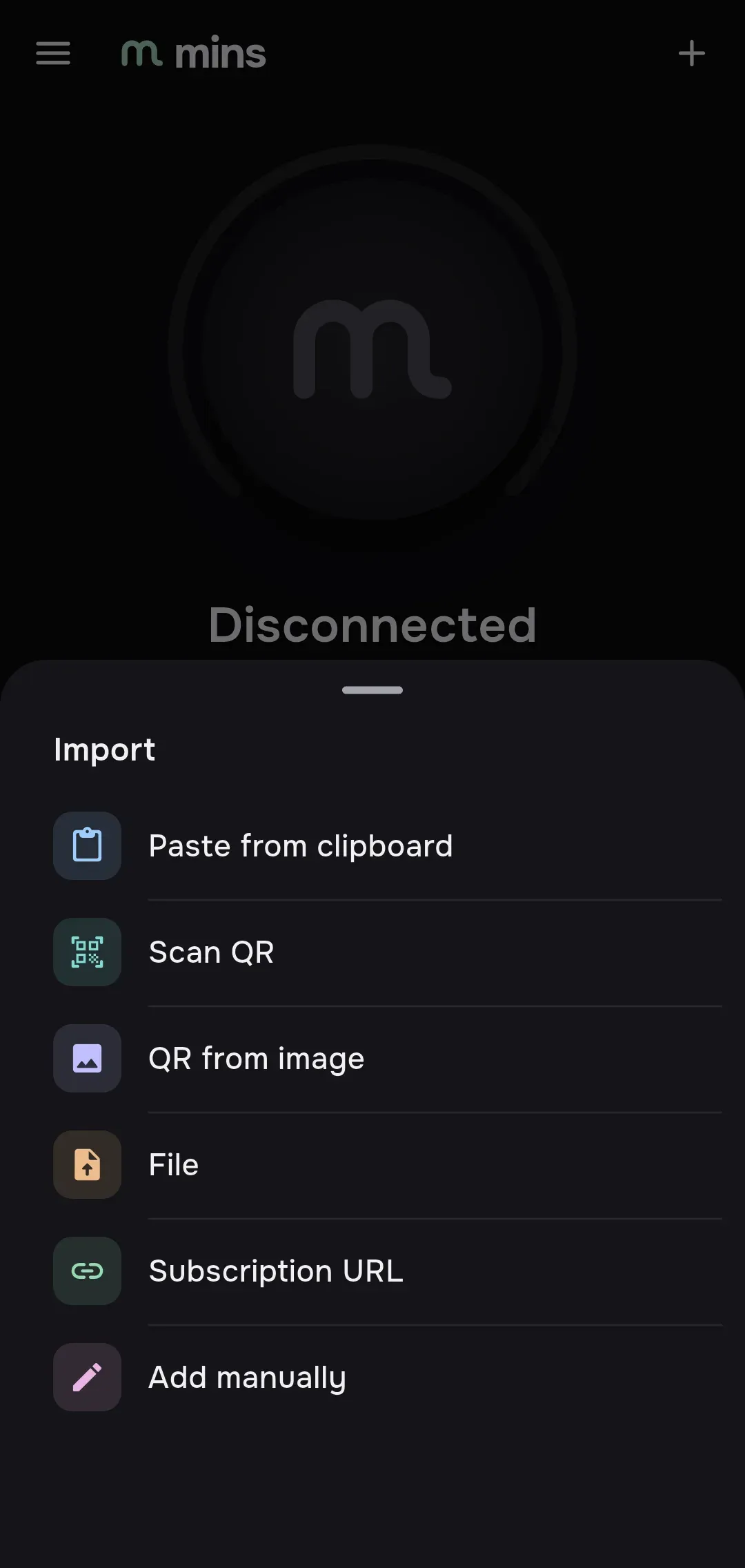
| Item | What it does |
|---|---|
| Paste from clipboard | Reads the clipboard and builds the preview at once. |
| Scan QR | Opens the camera and reads a QR code. Android, iOS and macOS only. |
| QR from image | Picks an image file (.png, .jpg, .jpeg, .webp) and reads the QR code on it. The image must be under 40 megapixels. |
| File | Picks a text file (.json, .conf, .txt) and reads its contents. |
| Subscription URL | Opens an empty Import screen to type or paste a URL. |
| Add manually | Opens the server form, see Servers → Add a server by hand. |
The Import screen itself has a Link or configuration field and the same sources as chips: Clipboard, File, QR from image, Scan QR and Add manually. Paste or type anything from the list below into the field and tap Preview.
What you can import
Section titled “What you can import”| Input | Notes |
|---|---|
Subscription URL (https://…) |
Downloaded by mins and kept as a subscription that updates itself, see Subscriptions. |
vless:// link |
One server. The name is the part after #. |
hysteria2:// or hy2:// link |
One Hysteria2 server. |
wireguard:// link |
One WireGuard server. |
vpn:// link |
An AmneziaVPN share link. mins reads the AmneziaWG configuration inside it. A link with no AmneziaWG configuration is rejected. |
| A list of links | Plain text, one link per line, or the same list encoded in base64. Every line becomes a server. |
| WireGuard or AmneziaWG config | The .conf text: [Interface] first, then [Peer] sections. |
| Xray JSON | A single outbound, a complete Xray config, or an array of them. Comments (// and /* */) are allowed. Each object becomes one server, named by its remarks or remark field. |
| Routing profile | A routing profile in JSON, or a routing link, see Routing. |
A QR code can hold any of these.
Servers from a complete Xray config keep their own DNS and routing, and carry a JSON chip in the list. A provider can name and flag such servers with a mins block, see mins block.
Subscription URL or pasted text
Section titled “Subscription URL or pasted text”- A URL (
https://…) is a subscription: it becomes a group with its own name, traffic and expiry, and mins updates it on a schedule. The default update interval is 6 hours, a provider can set another one. - An add link (
mins://add/<url>,happ://add/<url>orincy://add/<url>) pasted into the field is unwrapped into the subscription URL inside it and then handled as a URL. See mins:// links. - Pasted text (links, a list, JSON, a
.conf, a file) is not a subscription. Its servers are added as separate entries to the group My servers.
Subscription requirements
Section titled “Subscription requirements”- HTTPS is required. If you enter an
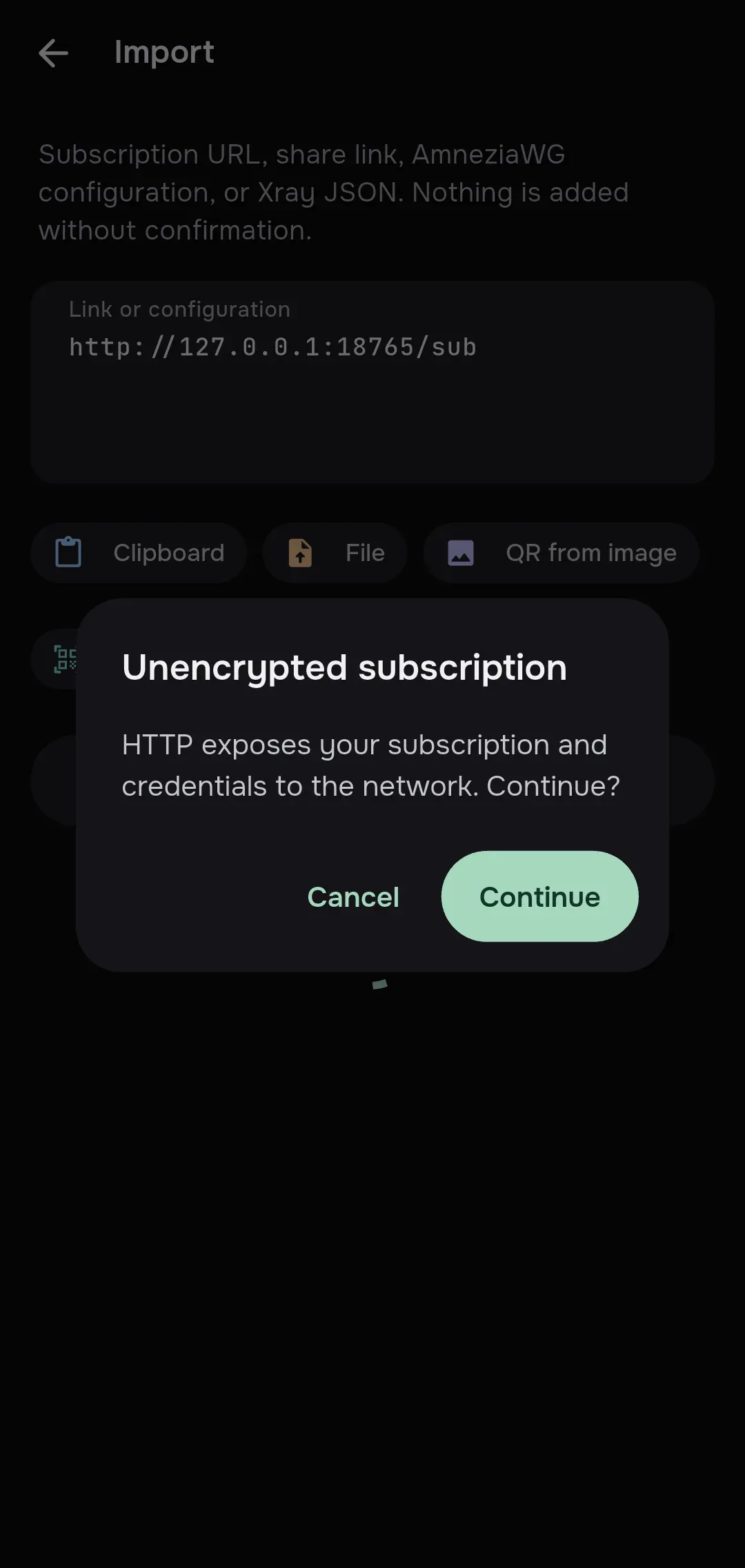
http://URL, mins asks first: the dialog Unencrypted subscription says HTTP exposes your subscription and credentials to the network. Continue? and the choices are Cancel and Continue. Only Continue lets mins fetch it over HTTP. - mins follows up to 5 redirects. A redirect from HTTPS to plain HTTP is refused with HTTPS required; confirm unencrypted HTTP explicitly, unless you confirmed HTTP for this URL.
- The request waits 9 seconds by default (a provider can set 5 to 15). The size limit of the downloaded body, and of any pasted text, is 16 MiB.
- The preview already sends the request, with the User-Agent and device headers described in Request headers.
Preview and confirm
Section titled “Preview and confirm”Under Import preview you see these rows:
| Row | Meaning |
|---|---|
| Subscription | The URL, when you import a subscription. |
| Warning (triangle) | Something mins accepted but wants you to know, for example an unknown parameter of a link was ignored. |
| Server (server icon) | Its name, then protocol · address. |
| Server (blocked sign, red) | A server mins cannot use, with the reason after the address. |
| Routing profile | A routing profile came with the input. |
If the provider asks to change device settings, the Subscription requests settings changes block lists each one with Current and Proposed values. Choose Accept or Reject, or leave it undecided and decide later: Subscriptions → Provider settings that need your approval.
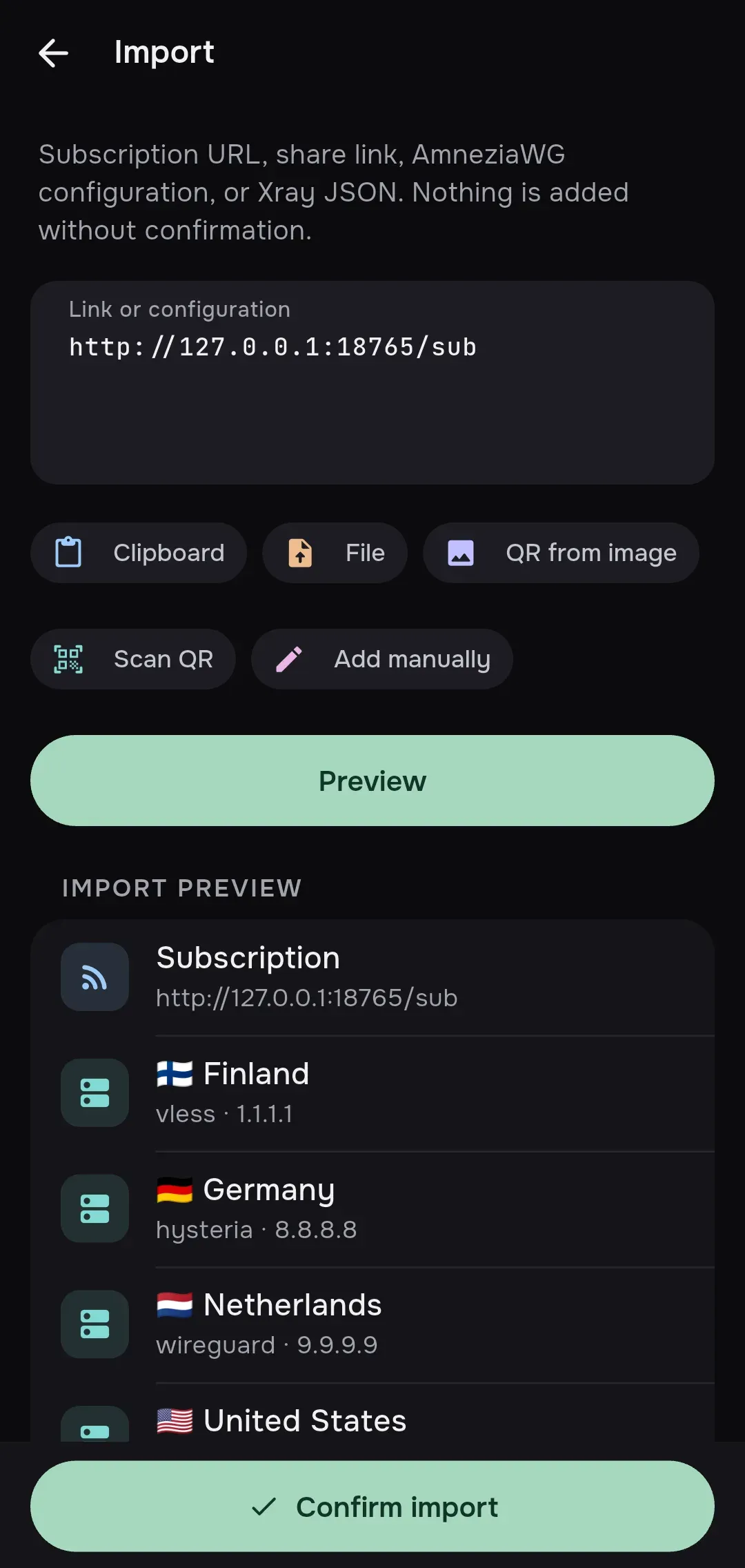
Tap Confirm import at the bottom. If it succeeds the screen closes and the servers appear on the home screen. If you change your mind, just go back: nothing was saved.
A routing profile is added to your profiles. Links of the onadd kind switch it on right away, links of the add kind do not, see Routing.
Servers mins cannot use
Section titled “Servers mins cannot use”A server in a protocol mins does not support is not dropped. It stays in the preview and in your list, dimmed, with the reason next to its chips, and it cannot be selected.
- A link of any other scheme (for example
vmess://,trojan://orss://) shows Protocol vmess is not supported. - In Xray JSON, outbounds other than VLESS, Hysteria and WireGuard (the service outbounds
freedom,blackholeanddnsare fine) show Unsupported protocols: vmess, trojan. - A VLESS link with gRPC mode
gunais marked unsupported with the explanation that Xray has no such codec: usegunormulti. hysteria2+realm://links are rejected: Hysteria realm is not supported.
mins:// links
Section titled “mins:// links”mins registers only the mins:// scheme in the system, on Android, iOS, macOS, Windows and Linux. A link in a browser, chat or QR code opens mins on the Import screen with the preview built, and still waits for your Confirm import.
| Link | What it does |
|---|---|
mins://add/<subscription URL> |
Opens the preview of that subscription. The URL may be percent-encoded. |
happ://add/<subscription URL> |
The same as mins://add/. |
incy://add/<subscription URL> |
The same as mins://add/. |
mins://routing/add/<URL or base64> |
Adds a routing profile. |
mins://routing/onadd/<URL or base64> |
Adds a routing profile and switches it on. |
mins://routing/off |
Turns routing off. |
mins://open |
Just opens mins. |
happ://add/… and incy://add/… are accepted from a deep link, the clipboard, a QR code, a file and pasted text, just like mins://add/…. Only mins:// is registered with the system, so a happ:// or incy:// link does not open mins from a browser or another app: paste it or scan it instead. The same goes for happ://routing/…, incy://routing/… and incy://autorouting/… routing links.
A routing link that adds a profile never turns routing off: onadd adds and activates the profile, add only adds it, and only off turns routing off.
Telegram buttons accept only https:// addresses, so for bots there is the redirector https://sr.minsclient.com/#add/<url>. It opens mins with the subscription preview. See Links → Telegram buttons. The exact link grammar is in Links.
Import errors
Section titled “Import errors”When mins cannot read the input, a red row with the message appears under the buttons. The text looks like text: Only Xray configuration imports are supported (unsupported_format): the place, the message and a short code.
| Message | Meaning | Details |
|---|---|---|
| Protocol X is not supported | A link of an unsupported protocol (shown as a blocked server, not as an error). | Troubleshooting |
| Only Xray configuration imports are supported | The JSON is a sing-box or Clash config. mins reads Xray configs only. | Troubleshooting |
| Encrypted Happ/INCY links are not supported | A happ://crypt… or incy://crypt… link. Ask the provider for a regular subscription URL. |
Troubleshooting |
| HTTPS required; confirm unencrypted HTTP explicitly | The subscription tried to go over plain HTTP. | Troubleshooting |
| No importable servers or routing profiles found | The input parsed, but holds nothing to add. | Troubleshooting |
| Input is empty | Preview was tapped with an empty field. | Troubleshooting |
| Invalid base64 encoding | The text is not a link, a list of links, a config or JSON, so mins tried it as base64. | Troubleshooting |
| No readable QR code found in image | The picture has no QR code mins can decode. | Troubleshooting |
The warning Certificate verification may be disabled on a server (on its Details screen) means its settings turn certificate checks off (allowInsecure). See Troubleshooting before you use it.