
Servers
Groups
Section titled “Groups”Servers live on the home screen in groups, one under another:
- Every subscription is its own group, named like the subscription.
- Servers you added yourself (pasted links and lists, JSON, the manual form) go to the group My servers. It appears only when it has at least one server.
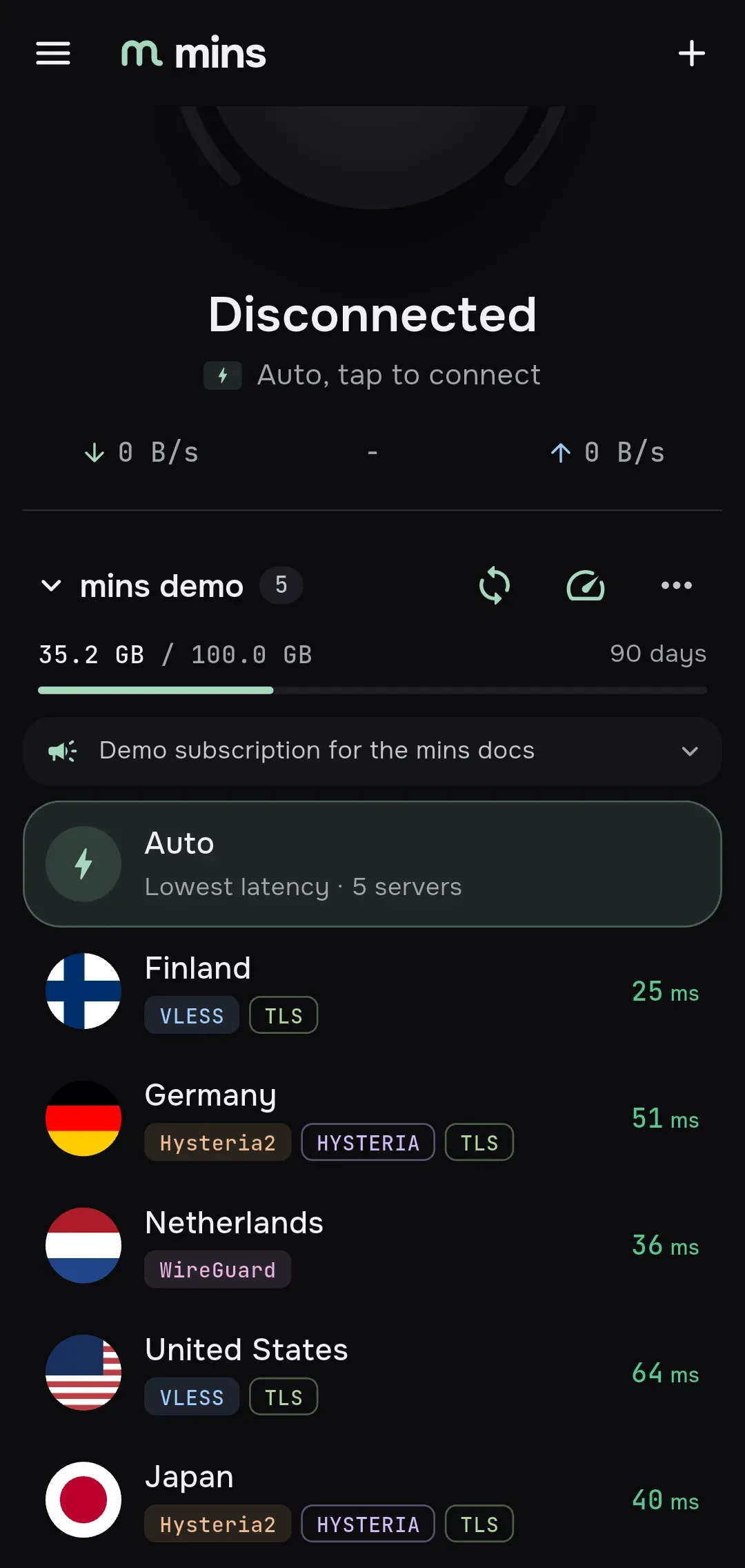
The header of a group has, from left to right: the group name with a count of its servers, the Update subscription button (subscriptions only), the Ping all button and the More menu. Tap the name to collapse or expand the group. Under the header a subscription shows its traffic and expiry and the provider’s announcement, see Subscriptions.
A server row shows a flag or an icon, the name, colored chips and the ping:
- The flag comes from the provider’s
minsblock, from a flag emoji or a country name at the start of the name, or, for a server addressed by an IP, from the GeoIP database if you downloaded one. Otherwise the row shows a globe or an icon the provider chose. - The first chip (filled) is the protocol. Up to two outlined chips follow, for the transport and the security (Reality, TLS). The plain
rawandtcpare not shown. A JSON chip marks a complete Xray config, and a warning glyph means TLS without certificate verification. A chip that does not fit is left out, not cut. - A server mins cannot use is dimmed, shows its reason next to the chips and cannot be selected, see Import.
A subscription with no servers shows Subscription is empty and a Refresh button. With a search or filter that matches nothing, a group says No matching servers.
Choose a server
Section titled “Choose a server”Tap a row to select it: the highlight moves to it. The selection is remembered between launches. If mins is connected, it switches the tunnel to the new server at once. On a desktop keyboard the arrow keys move the selection through the supported rows of the group.
The first row of a group is Auto, with the subtitle Lowest latency · N servers. It uses every supported server of the group and sends traffic through the one with the lowest delay. While connected, mins keeps measuring the delay of each of them in the background through the tunnel (a HEAD request to https://www.gstatic.com/generate_204 every 5 minutes) and switches when another server becomes faster.
Auto is shown only when the group has at least one supported server. It has no ping of its own and no menu: the live ping is in the line under the connect button.
Some providers ship their own balancer inside a full Xray config. A group then shows only one Auto-style row, chosen in Settings → Connection → Auto → Auto priority:
| Option | Meaning |
|---|---|
| mins Auto (default) | Our Auto, lowest ping. The provider’s balancer is hidden. |
| Provider balancer | The provider’s balancer comes first, styled as Auto with the subtitle Provider balancer · strategy. Our Auto is hidden. |
Changing it only changes which row is shown, and a selection that pointed to the hidden row moves to the visible one.
The number at the right of a row is the delay to that server.
| What you see | Meaning |
|---|---|
| A number with ms | The measured delay, colored by quality. |
| A gray bar | Being measured now. |
| n/a | No answer, or the server timed out. |
- |
Not measured yet. |
By default mins pings with ICMP echo: a ping to the server’s IP address without the proxy, falling back to a TCP connection if ICMP is not available. Other types are TCP connect, Through proxy (HEAD) and Through proxy (GET). You pick the type, the URL, the timeout and the display (Time and quality or Quality icon only) in Settings → Ping. Single servers can override the type, see Server details. A provider may set its own ping options for its subscription.
The color depends on how the delay was measured:
| Type | Green | Orange | Red |
|---|---|---|---|
| ICMP echo, TCP connect | under 100 ms | under 250 ms | 250 ms or more |
| Through the proxy | under 300 ms | under 700 ms | 700 ms or more |
Ways to measure:
- Tap the speed gauge Ping all in a group header: it pings every server of the group that can be pinged.
- Auto ping is on by default: it pings the servers when mins starts, after a subscription update and every 10 minutes while the home screen is open. You can turn it off in Settings → Ping.
- Ping when app opens (Settings → Ping) pings the servers every time you open the app. A provider can switch it on for its subscription.
- While you are connected, the line under the connect button shows the live ping through the tunnel.
Search, favorites and sorting
Section titled “Search, favorites and sorting”The More menu (⋯) of any group ends with three items that apply to all groups at once:
- Search servers asks for a text and shows only servers whose name, protocol, address or description contains it.
- Favorites shows only favorite servers (mark them in the server menu, see below).
- Sort offers Subscription order, Name and Ping.
While a filter is active a chip with it appears above the groups, and Reset clears them all. A provider can set the default sorting of its subscription, and can forbid collapsing the group.
Server menu
Section titled “Server menu”Open it with a long press on a row, or with a right click on desktop. With the keyboard, move the selection with the arrow keys and press Shift+F10. The Auto row has no menu.
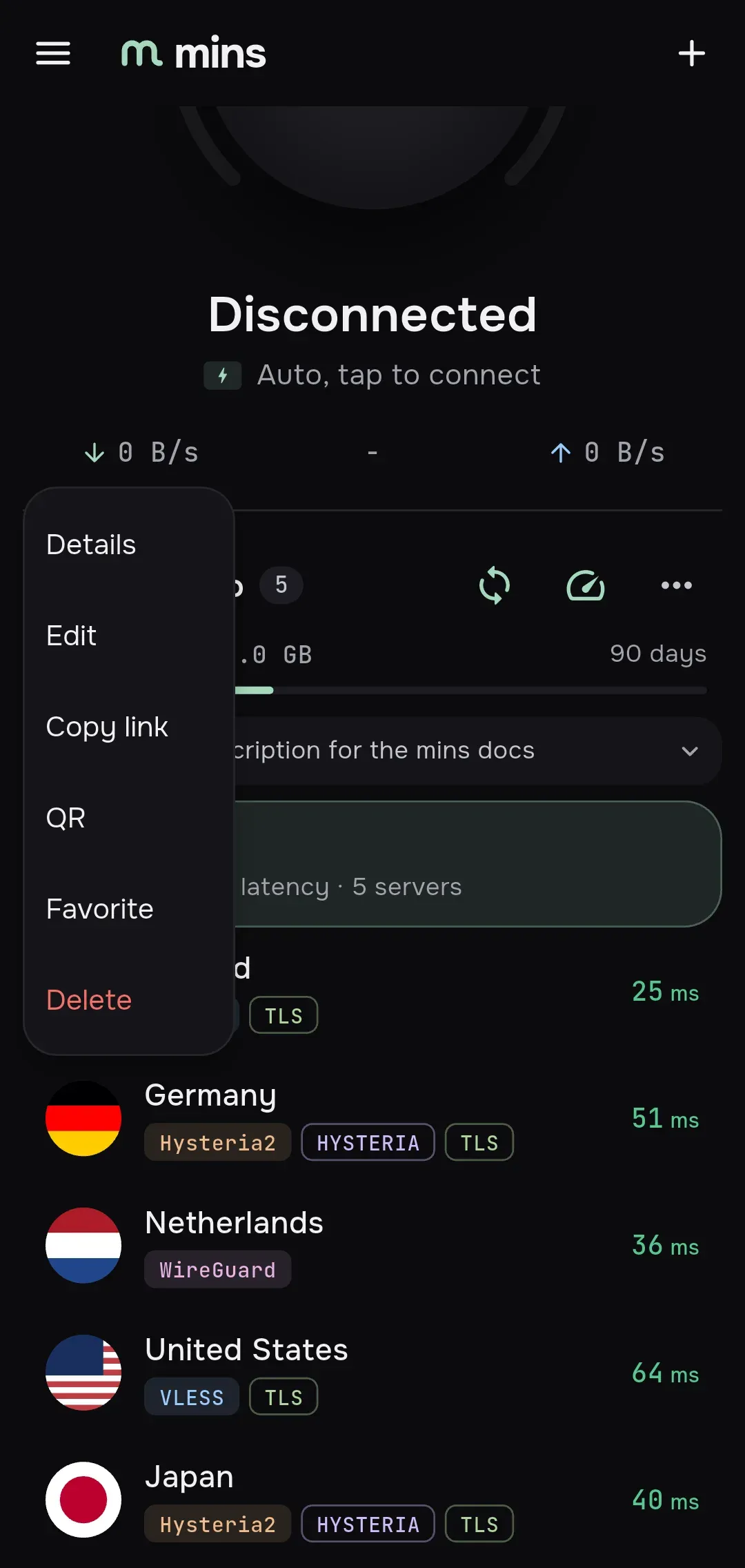
| Item | What it does |
|---|---|
| Details | Opens the details screen. |
| Edit | Opens the manual form for a server from a link or the form. For a server with a complete Xray config opens the JSON editor with a copy. |
| Copy link | Copies a share link to the clipboard. |
| QR | Shows the share link as a QR code. |
| Favorite | Adds the server to favorites, or removes it. The row itself shows no mark. Use the Favorites filter to see them. |
| Delete | Asks Delete server? and removes it. |
Copy link and QR first show Export link / QR: Links do not preserve custom country, icon or ping settings. Export JSON to keep all metadata. Choose Continue to go on. Remember that a link contains the server’s credentials.
The More menu of a subscription has Edit (opens the subscription screen), Share QR, Copy link and Delete. The one of My servers has Add server, Paste from clipboard and Export. Export shares the JSON of all servers of the group as mins-servers.json, after a warning that the code contains private credentials.
Server details
Section titled “Server details”Details shows the name, the chips, then:
- Protocol and Address.
- Description, if the provider gave one.
- The reason, if the server is unsupported, and Certificate verification may be disabled if the config turns certificate checks off.
- Ping type: Default or one of
icmp,tcp,proxy-head,proxyjust for this server. - Select, Edit (not for a complete Xray config), Edit as JSON copy, Export link / QR, Share JSON and Delete.
- Configuration (contains secrets): the full config in plain text, keys and passwords included. Do not show this screen to others.
For a complete Xray config the footer reminds you: Full JSON: app routing, mux, and DPI settings do not override this profile.
Add a server by hand
Section titled “Add a server by hand”Open the Import sheet and choose Add manually, or use Add server in the menu of My servers. Pick the protocol at the top: VLESS, Hysteria2 or WireGuard.
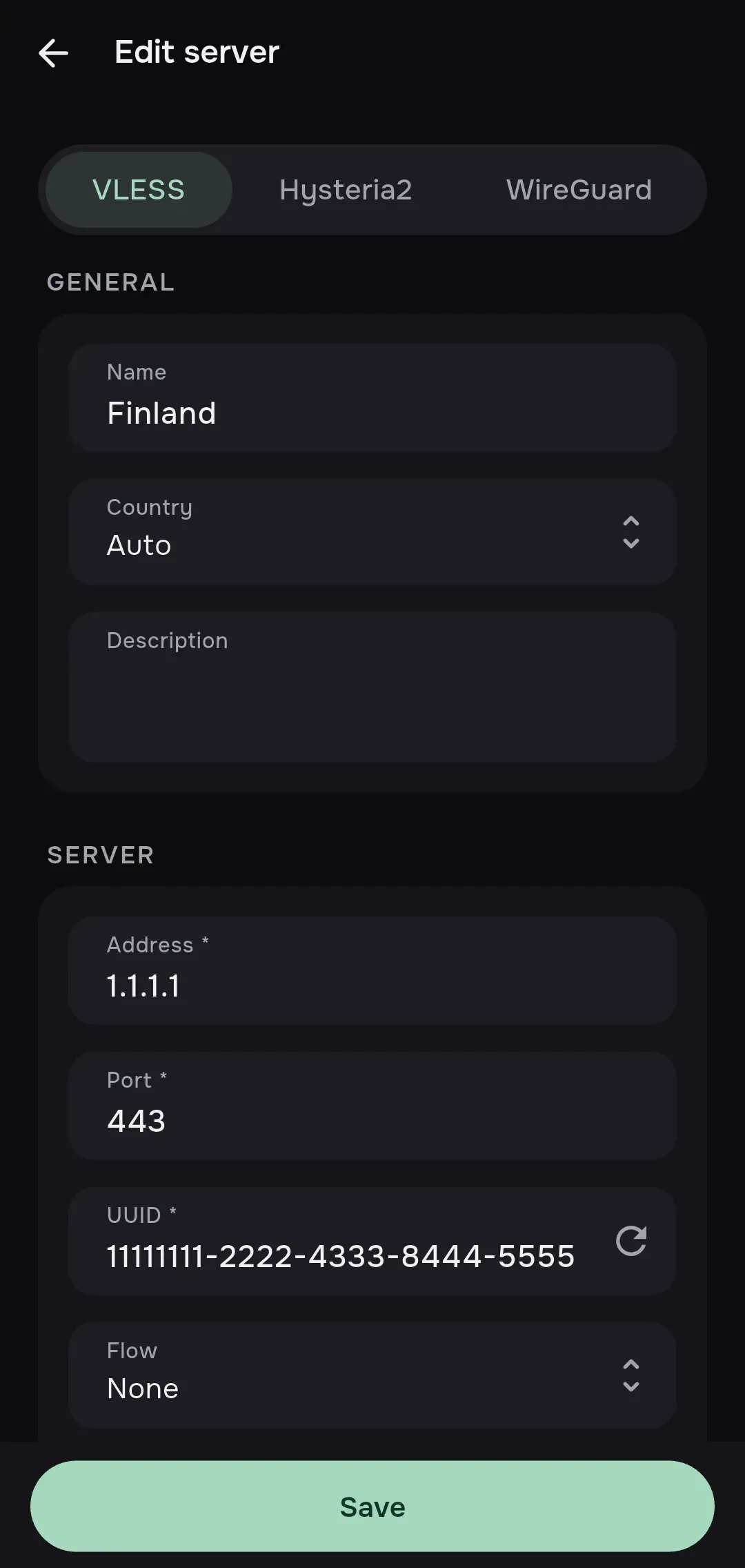
Required fields are marked with *. Each field is checked as you type, and Save stays off until the form is valid. On save mins builds the config, checks it and lists any errors or warnings under the form. The server goes to My servers.
General is the same for all protocols: Name (up to 64 characters), Country (auto by default) and Description (up to 120 characters).
VLESS
| Section | Fields |
|---|---|
| Server | Address *, Port * (443), UUID * (the Generate button makes one), Flow (none, xtls-rprx-vision, xtls-rprx-vision-udp443), Encryption (none by default, or mlkem768x25519plus.*) |
| Transport | Transport: raw, xhttp, ws, grpc, httpupgrade or kcp, with its own fields: Header (raw), Host and Path (raw, ws, httpupgrade, xhttp), Service name, Authority and Mode (grpc), Mode and Extra JSON (xhttp), MTU and TTI (kcp) |
| Security | Security: none, tls or reality. TLS: SNI, ALPN, Fingerprint, ECH config, Do not verify certificate. Reality: SNI, Public key *, Short ID, Spider X, Fingerprint, ML-DSA-65 verify |
Hysteria2
| Section | Fields |
|---|---|
| Server | Address *, Port (443), Port hopping range, Hop interval (seconds), Password * |
| TLS | SNI, ALPN, Certificate SHA-256 pin, Do not verify certificate |
| Obfuscation | Salamander password |
| Brutal | Upload (Mbit/s) and Download (Mbit/s). Leave them empty to use BBR. |
WireGuard
| Section | Fields |
|---|---|
| Interface | Paste .conf (fills the form from a WireGuard config on the clipboard), Private key * (Generate makes a key pair and shows the public key), Interface addresses * (CIDR, comma separated), MTU (1420), Reserved bytes |
| Peer 1, Peer 2… | Public key *, Preshared key, Endpoint * (host:port or [IPv6]:port), Allowed IPs (0.0.0.0/0, ::/0), Keepalive (seconds). Add peer and Remove peer change the count. |
| AmneziaWG | A toggle. When on, shows Jc, Jmin, Jmax, S1 to S4, H1 to H4 and I1 to I5. |
Fields the form has no place for, for instance from a link you are editing, are kept when you save. They appear in a block titled Additional JSON fields (N) with an Open JSON button, where you can edit the whole outbound as JSON.
JSON editor
Section titled “JSON editor”For anything the form cannot express, a complete Xray config for example, use the JSON editor. Open it from Edit in the menu of such a server, or from Details → Edit as JSON copy of any server. It starts from that server’s config.
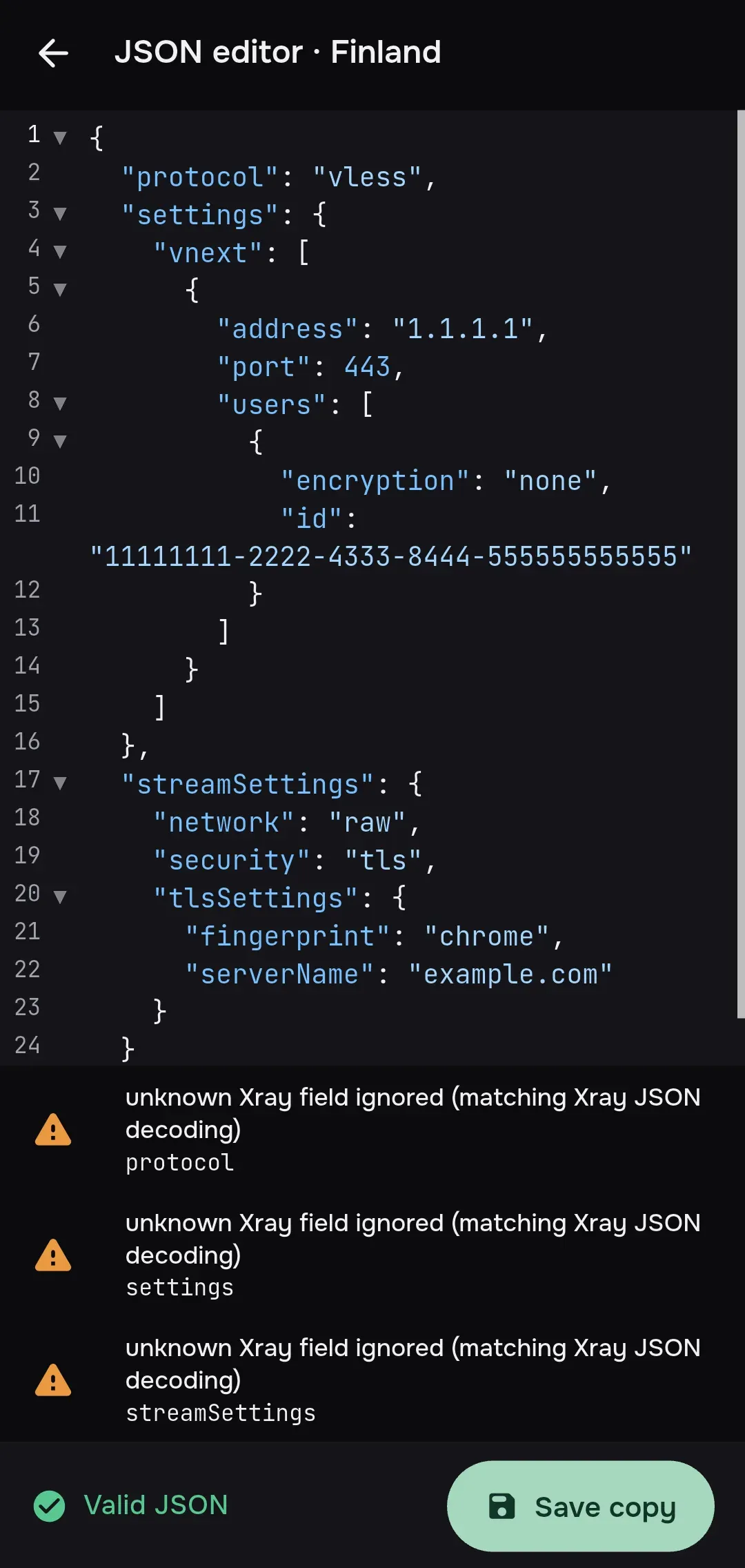
The title reads JSON editor · name. The text has syntax highlighting and line numbers and must be a JSON object. Half a second after you stop typing, mins checks it, and the bar at the bottom shows Checking… and then Valid JSON or the first error. Under the editor every problem is listed with its path: errors in red, warnings in orange. Tap one to jump to the key.
Save copy is active only when there are no errors. It adds a new server name (copy) to My servers and leaves the original untouched.