
Connection modes
The connection mode decides how the device’s traffic reaches mins. You can choose a mode only on desktop. On Android and iOS mins always works as a VPN.
| Mode | What it does | Platforms |
|---|---|---|
| VPN (TUN) | Creates a virtual network interface. All of the device’s traffic goes through it, except local networks, excluded routes and apps you took out of the tunnel. This is the default | Android, iOS, macOS, Windows, Linux |
| System proxy | Starts a local proxy on 127.0.0.1 (SOCKS5 and HTTP on one port) and writes it into the system proxy settings. The previous settings are restored when you disconnect. Apps that ignore the system proxy bypass mins |
macOS, Windows, Linux |
| Proxy only | Starts the same local proxy but changes nothing in the system. Enter 127.0.0.1 and the port in each app yourself |
macOS, Windows, Linux |
The local proxy port is Mixed proxy port, 10808 by default. Change it in Settings → Advanced → Local proxy. In Proxy only mode you can also turn on Require proxy authentication there: mins generates a user name and a password and shows them with copy buttons. The authentication protects both SOCKS5 and HTTP.
Where to switch the mode
Section titled “Where to switch the mode”- Side menu → Connection mode (desktop).
- Settings → Connection → VPN → Connection mode (desktop).
- The mins tray icon, Mode submenu (the items are named
tun,system_proxyandproxy_only).
If you switch the mode while connected, mins reconnects in the new mode by itself. A subscription can suggest its own mode. It takes effect only after you approve it (see the Settings reference).
Window and tray on desktop
Section titled “Window and tray on desktop”Closing the window does not disconnect the VPN: the window hides and mins stays in the tray. The tray menu has Open mins, Connect or Disconnect, Servers, Mode and Quit. Quit disconnects and closes the app.
Kill switch
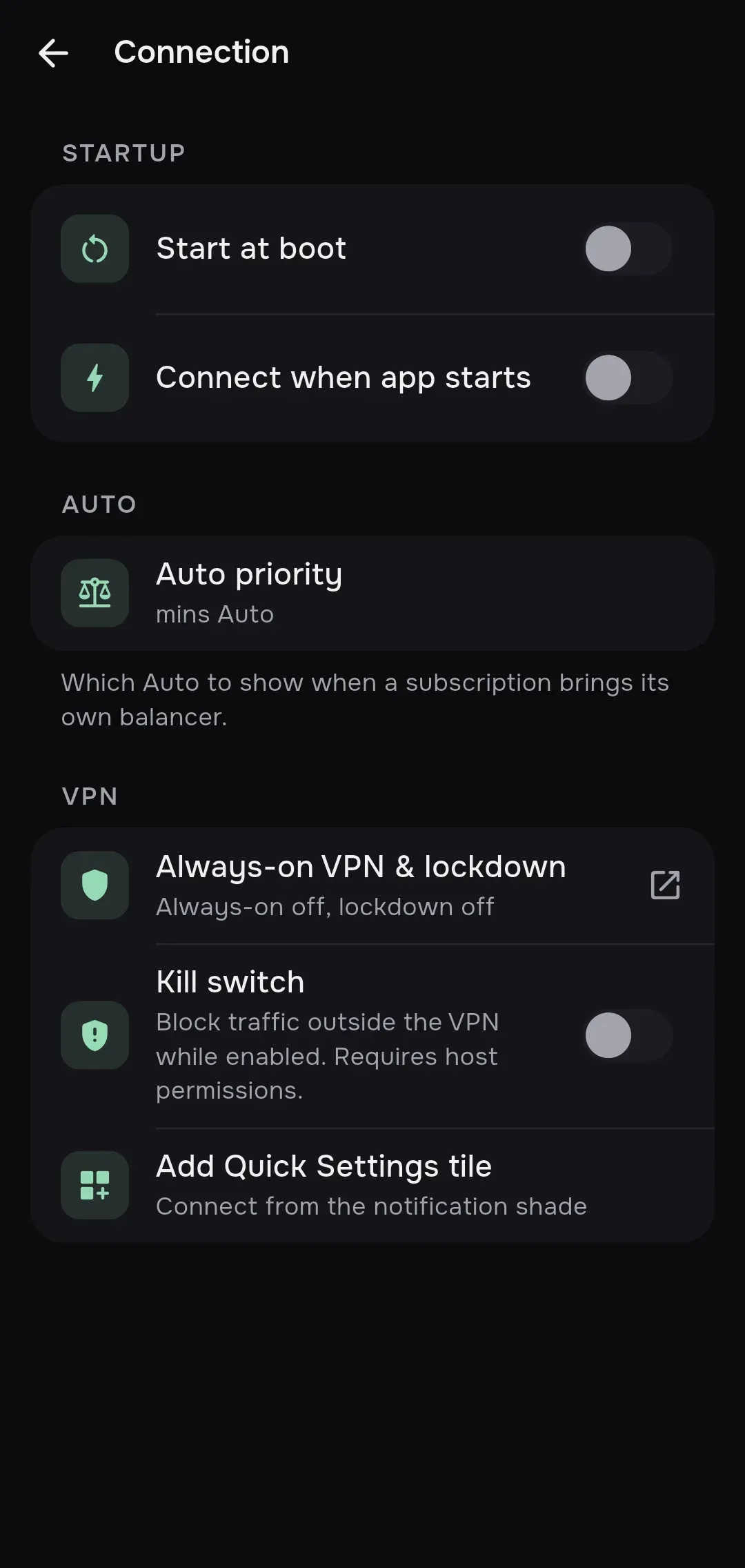
Section titled “Kill switch”The Kill switch toggle (Settings → Connection → VPN) is off by default. While it is on, traffic outside the tunnel is blocked. The in-app hint reads: “Block traffic outside the VPN while enabled. Requires host permissions.”
How it works on each platform:
| Platform | Behavior |
|---|---|
| Android | If the engine stops with an error, mins keeps the VPN interface open and traffic stays blocked. The notification says “Traffic blocked — reconnect or disconnect”. Disconnect the VPN manually or connect again |
| iOS and macOS | Apple’s “include all networks” option (includeAllNetworks) is turned on: all device traffic is forced through the tunnel |
| Windows | Blocking with Windows Filtering Platform (WFP) filters. If the connection drops, the filters stay until you press Disconnect |
| Linux | Blocking with nftables rules. If the rules cannot be applied, the connection does not start and the message suggests checking that nftables is installed |
Limits:
- The kill switch is built for VPN (TUN) mode. On Windows and Linux a connection in System proxy or Proxy only mode with the kill switch on does not start: mins answers “kill switch requires TUN”. On macOS System proxy with the kill switch is rejected too: “Kill switch requires full tunnel mode”.
- If the kill switch stays armed after a drop, the app shows “Kill switch remains armed; disconnect to restore network access”. Press Disconnect to get your network back.
Turning the kill switch on or off while connected reconnects.
Always-on VPN (Android)
Section titled “Always-on VPN (Android)”The Always-on VPN & lockdown row opens the Android system VPN settings. It shows the current status: “Always-on on or off, lockdown on or off”. System always-on VPN with lockdown is the most reliable way to keep traffic from leaking outside the VPN, and the Kill switch toggle in mins complements it.
If system always-on VPN is on, Android starts mins itself after a reboot, and the mins boot start (see below) does not fire.
Startup and auto-connect
Section titled “Startup and auto-connect”All of these options are in Settings → Connection → Startup. Everything is off by default except Live Activity.
| Option | Platforms | What it does |
|---|---|---|
| Start at boot | Android | After a reboot mins brings the VPN up with the last configuration. It needs VPN permission granted earlier and a connection made before. If the permission is missing, a “VPN permission required” notification appears. It works after the first unlock of the device |
| Launch at login | Windows, Linux, macOS | Starts mins when you log in. On macOS mins registers as a login item. If the system needs approval, an Allow mins in System Settings → Login Items row appears |
| Connect at login | Windows, Linux, macOS | Connects the selected server when mins starts. Together with Launch at login the connection comes up right after you log in |
| Connect when app starts | All | Connects the selected server every time mins starts |
| Live Activity | iOS | Shows the connection state and time on the lock screen and in the Dynamic Island. On by default |
| Auto-connect | iOS, macOS | The system connects the VPN itself (On Demand rules): Always or Except trusted Wi-Fi |
| Trusted Wi-Fi networks | iOS, macOS | A list of Wi-Fi network names, one per line. In Except trusted Wi-Fi mode the VPN disconnects on these networks |
Quick access
Section titled “Quick access”On Android, Settings → Connection → VPN has the Add Quick Settings tile button (“Connect from the notification shade”). On Android 13 and newer it offers to add the mins tile right away. On older versions add the mins tile in the Android quick settings editor.
The tile turns the VPN on and off with the last configuration. If VPN permission is missing or there is no configuration yet, the tile opens the app.
- Routing: what goes through the proxy and what goes direct.
- Split tunneling: choosing apps.
- Settings reference: every option with its default.
- Errors: if VPN permission was not granted.